Customer Data Enrichment: Improve Your CRM Data

Customer data enrichment adds relevant context to the records you already hold. For a CRM team, that may mean investigating missing business details, checking an outdated record, or cross-referencing information before using it in sales research.

Useful enrichment starts with a clear purpose. Adding more fields does not automatically make a CRM more accurate. The value comes from selecting relevant information, matching it carefully, and keeping a record of what changed.

Find the Gaps That Affect Your Workflow

Review how your team uses CRM data before deciding what to enrich. Identify the missing or inconsistent details that interrupt account research, audience segmentation, or data verification.

  • Separate incomplete records from records with conflicting information.
  • Choose a small set of fields tied to a specific research need.
  • Document what an acceptable, verified update looks like.


Start with a limited sample. It is easier to refine a matching rule before applying it across a larger set of records.

Customer data enrichment improve your crm data blog

Match the Record before Adding Context

A new detail is useful only if it belongs to the right person or business. A shared name is not enough to establish a match. Compare available identifiers and check whether the information is consistent with the record you already have.

When details disagree, preserve the original value and flag the discrepancy for review. Distinguish an unknown field from an outdated one. Do not overwrite information supplied directly by a customer simply because another source offers a different value.

Cross-Reference Data with a Clear Purpose

EnformionGO provides real-time access to identity, people, business, asset, and court record data through self-service searches and API integrations. It draws on more than 6,000 unique data sources for public-record inquiries and cross-referencing existing data.

For CRM enrichment, select information relevant to appropriate marketing, sales research, or business-verification tasks. Review the returned information and your matching evidence before updating your own CRM. API access is an integration method; it does not establish that a particular CRM connection is available.

Explore EnformionGO for a focused research and cross-referencing workflow.

Customer data enrichment improve your crm data blog

Keep an Audit Trail for Every Update

Record the previous value, the proposed update, its source, and the date of review. Note which matching evidence supported the change and who resolved any uncertainty. This makes later corrections easier to investigate.

Keep review rules consistent across the team. Revisit the fields that matter to your workflow when you have reason to believe they have changed. Enrichment should support ongoing data maintenance, rather than making a one-time snapshot look permanently current.

For a small research pilot, Get Started with EnformionGO.

Make Enrichment Part of CRM Maintenance

A practical customer data enrichment process follows a simple sequence: identify a gap, research relevant details, confirm the match, review the proposed change, and document the update. Track unresolved records separately so uncertainty remains visible.

EnformionGO can support the research and verification steps. Begin with a defined CRM question and a limited sample, then learn the searches or API workflows suited to your task. Get Started.
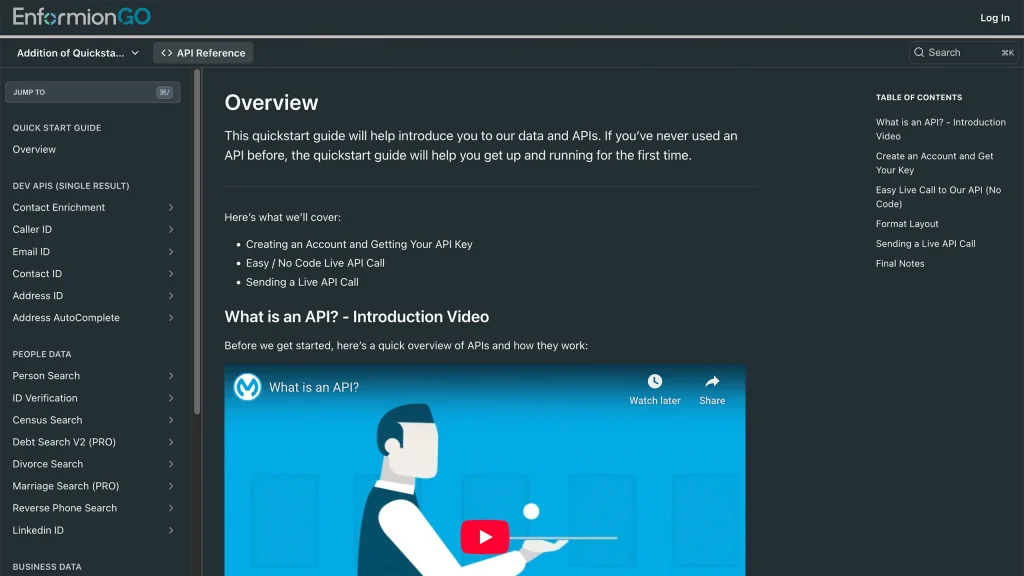
Enformiongo api documentation readme

Getting familiar with how to use EnformionGO’s search and API products is very helpful in deciding what products you’ll want to use. We’ve created this quick start guide to walk new users through how to use EnformionGO. Happy searching!

Pro License Data

Filter Pro License Data using the fields below.

  • License Status
    • Multi select
      Description: Select the license status(es) you want to target. You can select more than one


  • License Issuing State
    • Multi select
      Description: Select the license issuing state(s) you want to target. You can select more than one.


  • License Issuing Date Range
    • Select the date range for when the target matches had their license issued.
  • License Expiration Date Range
    • Select the date range for when the target matches had their license expire.

Workplace & Corporation Data

Filter Workplace Data using the fields below.

  • Years at Company
    • Field type: input
    • Description: Enter the number of years at a company for your target matches.
  • Job Title Level
    • Multi select
      Description: Select the job title level(s) you want to target. You can select more than one.
  • Department
    • Multi select
      Description: Select the department(s) you want to target. You can select more than one.
  • Company Revenue Range
    • Field type: range – min/max ($0 – $100,000,000)
    • Description: Set the company revenue range for your matches
  • Company Size
    • Field type: range – min/max (0 – 10,000)
    • Description: Set the company size range for your matches
  • Office Location City
    • Field type: input
    • Description: Enter the office location city name you want to target
 
  • Office Location County
    • Field type: input
    • Description: Enter the office location county name you want to target
  • Office Location State
    • Field type: Multi-select
    • Description: Select the office location state(s) you want to target. You can select more than one.
  • Office Location Zip
    • Field type: input
    • Description: Enter the office location zip code you want to target

Property Data

Filter Property Data using the fields below.

  • Number of Property Owners
    • Field type: range – min/max (0 – 50)
    • Description: Set the range of the number of owners for one of the properties linked to each match you want to target
  • Land Use Code
    • Field type: input
    • Description: Enter the land use code (number only) for one of the properties linked to each match you want to target. For example, for “1100: Single-Family Home” you would enter “1100”
  • Total Square Footage
    • Field type: input
    • Description: Enter the total square footage (number only) for one of the properties linked to each match you want to target

  • Property Value
    • Field type: range – min/max (0 – 10 million)
    • Description: Set the range of the property value for one of the properties linked to each match you want to target
  • Mortgage Amount
    • Field type: input
    • Description: Enter the mortgage amount (number only) for one of the properties linked to each match you want to target
  • Purchase Date
    • Field type: input
    • Description: Enter the purchase date (number only) for one of the properties linked to each match you want to target
  • Property Type
    • Multi select
      Description: Select the property type(s) you want to target. You can select more than one.
  • Owner Type
    • Multi select
      Description: Select the owner type(s) you want to target. You can select more than one.
  • Owner Status
    • Multi select
      Description: Select the owner status(es) you want to target. You can select more than one.
  • Owner Occupied
    • Field type: Boolean
    • Description: Select if you require for one of the properties to be owner-occupied

Consumer Insights Data

Filter Consumer Insights Data using the fields below.

  • Presence of Children
    • Field type: Boolean
    • Description: Select if you require matches with children present in the household
    •  
  • Credit Card Holder
    • Field type: Boolean
    • Description: Select if you require matches to be a credit card holder
  • Interest in Travel
    • Field type: Boolean
    • Description: Select if you require matches to be interested in travel
  • Interest in Cooking
    • Field type: Boolean
    • Description: Select if you require matches to be interested in cooking
  • Interest in Reading
    • Field type: Boolean
    • Description: Select if you require matches to be interested in reading


  • Smoker
    • Field type: Boolean
    • Description: Select if you require matches to be a smoker
  • Exercise Enthusiast
    • Field type: Boolean
    • Description: Select if you require matches to be an exercise enthusiast
  • Exercise with Running
    • Field type: Boolean
    • Description: Select if you require matches who run for exercise
  • Exercise with Walking
    • Field type: Boolean
    • Description: Select if you require matches who walk for exercise
  • Does Aerobic Exercise
    • Field type: Boolean
    • Description: Select if you require matches who do aerobic exercise
  • Into Camping / Hiking
    • Field type: Boolean
    • Description: Select if you require matches who are interested in camping / hiking 
  • Into Natural Foods
    • Field type: Boolean
    • Description: Select if you require matches who are interested in natural foods
  • Into Beauty Health
    • Field type: Boolean
    • Description: Select if you require matches who are interested in health / beauty
  • Into Medical Health
    • Field type: Boolean
    • Description: Select if you require matches who are interested in health / medicine
  • Into the Outdoors
    • Field type: Boolean
    • Description: Select if you require matches who are interested in the outdoors
  • Into Sporty Living
    • Field type: Boolean
    • Description: Select if you require matches who are interested in the outdoors

Location Data

Filter Location Data using the fields below.

  • City
    • Field type: input
    • Description: Enter the city name you want to target
  • County
    • Field type: input
    • Description: Enter the county name you want to target
  • State
    • Field type: Multi-select
    • Description: Select the state(s) you want to target. You can select more than one.
  • Zip
    • Field type: input
    • Description: Enter the zip code you want to target
  • Population Designation
    • Field type: Multi-select
    • Description: Select the population type(s) you want to target. You can select more than one.

Person Data

Filter Person Data using the fields below.

  • Age
    • Field type: range – min/max (18 – 120)
    • Description: Set the age range for your matches
  • Education Level
    • Multi select
      Description: Select the education level(s) you want to target. You can select more than one.
  • Credit Score
    • Field type: range – min/max (0 – 850)
    • Description: Set the credit score range for your matches
  • Estimated Income
    • Field type: range – min/max ($0 – $250,000)
    • Description: Set the income range for your matches. Max setting is $250,000+.
  • Number of Properties Owned
    • Field type: range – min/max (0 – 50)
    • Description: Set the owned properties range for your matches
  • Occupation Level
    • Multi select
      Description: Select the occupation level(s) you want to target. You can select more than one.
  • Marital Status
    • Multi select
      Description: Select the marital status(es) you want to target. You can select more than one.
  • Gender
    • Multi select
      Description: Select the gender(s) you want to target. You can select more than one. Default is all.