Customer Intelligence Platform: A Simple Guide

Most organizations collect customer information in many places: CRM systems, marketing tools, spreadsheets, and support records. Each holds part of the picture, but few tell the full story on their own. A customer intelligence platform helps bring that information together, verify it, and add context so teams can understand their audience more clearly.

This guide explains what a customer intelligence platform is, where its data comes from, and how teams put it to work in everyday marketing, sales, and research workflows.

What Is a Customer Intelligence Platform?

A customer intelligence platform is a tool that helps businesses gather, organize, and enrich information about the people and organizations they serve. Rather than replacing your existing systems, it adds a layer of verified context to the data you already have.

Typical capabilities include:

  • Data verification: Confirming that customer details are accurate and consistent.
  • Data enrichment: Adding missing details to incomplete records.
  • Cross-referencing: Comparing internal records with external sources to resolve gaps.
  • Research support: Giving teams a clearer view of audiences and markets.


You can create a free account to see how these capabilities look in practice.
Customer intelligence platform a simple guide blog

The Data Behind Customer Intelligence

The value of any customer intelligence platform depends on the breadth and reliability of its data. Internal data shows how customers interact with your business, while external data helps confirm and complete those records.

EnformionGO, for example, provides real-time access to identity, people, business, asset, and court record data drawn from more than 6,000 unique data sources. Teams can use that data for public-record inquiries and to cross-reference the information they already hold.

Why broad sourcing matters

When multiple sources point to the same detail, teams can treat it with more confidence. When sources disagree, that signal helps flag records that need a closer look.

How Teams Use Customer Intelligence

Customer intelligence supports a range of appropriate business workflows:

  • Audience segmentation: Grouping customers by shared characteristics to tailor outreach and messaging.
  • Marketing: Building cleaner lists and more relevant campaigns from verified records.
  • Sales research: Understanding prospects and accounts before conversations begin.
  • Market research: Spotting patterns across audiences, regions, or industries.
  • Data maintenance: Keeping CRM records current and reducing duplicates.


Each use case relies on the same foundation: accurate, well-organized data. Explore EnformionGO to see which workflows fit your team.

Customer intelligence platform a simple guide blog

Practical Steps to Get Started

Adopting a customer intelligence platform does not need to be complicated. A simple, phased approach works well:

  1. Review your current data. Identify where customer records live and where gaps or inconsistencies appear.
  2. Define clear goals. Decide whether you are focused on verification, enrichment, segmentation, or research.
  3. Choose an access method. Self-service searches suit individual research, while API integrations help automate work at scale.
  4. Start small. Test with a limited set of records before expanding.
  5. Maintain over time. Schedule regular verification so data stays useful.

Turn Customer Data Into Clear Insight

A customer intelligence platform helps teams move from scattered records to a more complete, verified view of their audience. With reliable data and a clear plan, marketing, sales, and research teams can make better-informed decisions about where to focus.

The resources below can help you take the next step. Get Started with EnformionGO.
Enformiongo api documentation readme

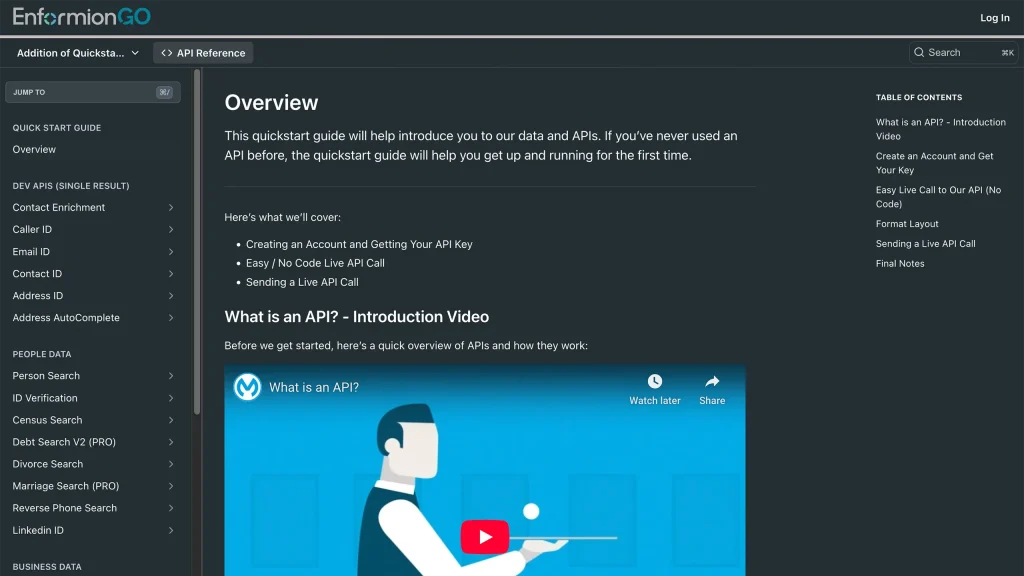
Getting familiar with how to use EnformionGO’s search and API products is very helpful in deciding what products you’ll want to use. We’ve created this quick start guide to walk new users through how to use EnformionGO. Happy searching!

Pro License Data

Filter Pro License Data using the fields below.

  • License Status
    • Multi select
      Description: Select the license status(es) you want to target. You can select more than one


  • License Issuing State
    • Multi select
      Description: Select the license issuing state(s) you want to target. You can select more than one.


  • License Issuing Date Range
    • Select the date range for when the target matches had their license issued.
  • License Expiration Date Range
    • Select the date range for when the target matches had their license expire.

Workplace & Corporation Data

Filter Workplace Data using the fields below.

  • Years at Company
    • Field type: input
    • Description: Enter the number of years at a company for your target matches.
  • Job Title Level
    • Multi select
      Description: Select the job title level(s) you want to target. You can select more than one.
  • Department
    • Multi select
      Description: Select the department(s) you want to target. You can select more than one.
  • Company Revenue Range
    • Field type: range – min/max ($0 – $100,000,000)
    • Description: Set the company revenue range for your matches
  • Company Size
    • Field type: range – min/max (0 – 10,000)
    • Description: Set the company size range for your matches
  • Office Location City
    • Field type: input
    • Description: Enter the office location city name you want to target
 
  • Office Location County
    • Field type: input
    • Description: Enter the office location county name you want to target
  • Office Location State
    • Field type: Multi-select
    • Description: Select the office location state(s) you want to target. You can select more than one.
  • Office Location Zip
    • Field type: input
    • Description: Enter the office location zip code you want to target

Property Data

Filter Property Data using the fields below.

  • Number of Property Owners
    • Field type: range – min/max (0 – 50)
    • Description: Set the range of the number of owners for one of the properties linked to each match you want to target
  • Land Use Code
    • Field type: input
    • Description: Enter the land use code (number only) for one of the properties linked to each match you want to target. For example, for “1100: Single-Family Home” you would enter “1100”
  • Total Square Footage
    • Field type: input
    • Description: Enter the total square footage (number only) for one of the properties linked to each match you want to target

  • Property Value
    • Field type: range – min/max (0 – 10 million)
    • Description: Set the range of the property value for one of the properties linked to each match you want to target
  • Mortgage Amount
    • Field type: input
    • Description: Enter the mortgage amount (number only) for one of the properties linked to each match you want to target
  • Purchase Date
    • Field type: input
    • Description: Enter the purchase date (number only) for one of the properties linked to each match you want to target
  • Property Type
    • Multi select
      Description: Select the property type(s) you want to target. You can select more than one.
  • Owner Type
    • Multi select
      Description: Select the owner type(s) you want to target. You can select more than one.
  • Owner Status
    • Multi select
      Description: Select the owner status(es) you want to target. You can select more than one.
  • Owner Occupied
    • Field type: Boolean
    • Description: Select if you require for one of the properties to be owner-occupied

Consumer Insights Data

Filter Consumer Insights Data using the fields below.

  • Presence of Children
    • Field type: Boolean
    • Description: Select if you require matches with children present in the household
    •  
  • Credit Card Holder
    • Field type: Boolean
    • Description: Select if you require matches to be a credit card holder
  • Interest in Travel
    • Field type: Boolean
    • Description: Select if you require matches to be interested in travel
  • Interest in Cooking
    • Field type: Boolean
    • Description: Select if you require matches to be interested in cooking
  • Interest in Reading
    • Field type: Boolean
    • Description: Select if you require matches to be interested in reading


  • Smoker
    • Field type: Boolean
    • Description: Select if you require matches to be a smoker
  • Exercise Enthusiast
    • Field type: Boolean
    • Description: Select if you require matches to be an exercise enthusiast
  • Exercise with Running
    • Field type: Boolean
    • Description: Select if you require matches who run for exercise
  • Exercise with Walking
    • Field type: Boolean
    • Description: Select if you require matches who walk for exercise
  • Does Aerobic Exercise
    • Field type: Boolean
    • Description: Select if you require matches who do aerobic exercise
  • Into Camping / Hiking
    • Field type: Boolean
    • Description: Select if you require matches who are interested in camping / hiking 
  • Into Natural Foods
    • Field type: Boolean
    • Description: Select if you require matches who are interested in natural foods
  • Into Beauty Health
    • Field type: Boolean
    • Description: Select if you require matches who are interested in health / beauty
  • Into Medical Health
    • Field type: Boolean
    • Description: Select if you require matches who are interested in health / medicine
  • Into the Outdoors
    • Field type: Boolean
    • Description: Select if you require matches who are interested in the outdoors
  • Into Sporty Living
    • Field type: Boolean
    • Description: Select if you require matches who are interested in the outdoors

Location Data

Filter Location Data using the fields below.

  • City
    • Field type: input
    • Description: Enter the city name you want to target
  • County
    • Field type: input
    • Description: Enter the county name you want to target
  • State
    • Field type: Multi-select
    • Description: Select the state(s) you want to target. You can select more than one.
  • Zip
    • Field type: input
    • Description: Enter the zip code you want to target
  • Population Designation
    • Field type: Multi-select
    • Description: Select the population type(s) you want to target. You can select more than one.

Person Data

Filter Person Data using the fields below.

  • Age
    • Field type: range – min/max (18 – 120)
    • Description: Set the age range for your matches
  • Education Level
    • Multi select
      Description: Select the education level(s) you want to target. You can select more than one.
  • Credit Score
    • Field type: range – min/max (0 – 850)
    • Description: Set the credit score range for your matches
  • Estimated Income
    • Field type: range – min/max ($0 – $250,000)
    • Description: Set the income range for your matches. Max setting is $250,000+.
  • Number of Properties Owned
    • Field type: range – min/max (0 – 50)
    • Description: Set the owned properties range for your matches
  • Occupation Level
    • Multi select
      Description: Select the occupation level(s) you want to target. You can select more than one.
  • Marital Status
    • Multi select
      Description: Select the marital status(es) you want to target. You can select more than one.
  • Gender
    • Multi select
      Description: Select the gender(s) you want to target. You can select more than one. Default is all.