
Fraud Detection Software: What to Look For

Fraud detection software can help teams spot unusual patterns, but a useful alert is only the start. The real question is whether people can understand the signal, check the underlying information, and act consistently. Here is a practical way to evaluate tools for business research and data verification.

For an additional source of record context, Explore EnformionGO.

Verify the Data Behind the Signal

Ask vendors where each signal comes from, how recently its inputs were refreshed, and what happens when records disagree. A score without traceable context is hard to review. Look for clear definitions of the data fields and a way to distinguish a missing value from a genuine mismatch.

In a business research workflow, corroborating names, business details, and public records can help an analyst investigate an exception. EnformionGO provides real-time access to identity, people, business, asset, and court record data through self-service searches and APIs. Its public-record inquiries draw on more than 6,000 unique data sources.

Fraud detection software what to look for blog

Match the Tool to the Research Task

Start with the decision your team actually needs to support: finding duplicate records, checking inconsistent business information, or prioritizing unusual patterns for review. Then test the software against representative cases from that workflow.

  • Can users see why an item was flagged?
  • Can they correct incomplete or outdated inputs?
  • Can they compare a signal with other appropriate records?


Keep the evaluation tied to legitimate research and verification tasks, rather than treating every alert as proof of wrongdoing.

Evaluate the Review Workflow

Good review design makes it easy to move from an alert to a documented next step. Check whether reviewers can capture the reason for a decision, distinguish unresolved questions from confirmed findings, and return to a case when new information appears.

Run a small trial with ordinary, ambiguous, and clearly inconsistent records. Note where reviewers need more context and whether the software presents it clearly. If your team needs additional public-record context for appropriate business research, Get Started with EnformionGO.


Fraud detection software what to look for blog

Ask About Fit, Controls, and Maintenance

Before committing to a tool, clarify who will manage rules, how changes are tested, and what users can access. Ask what happens when source data changes, how false positives are reviewed, and how the vendor explains its outputs.

Also consider the work around the software: training, ownership of exceptions, and periodic checks that the process still serves its original research purpose. These operational details can matter as much as a feature list.

Choose for Explainable Research

The strongest fit is the one your team can use with care: relevant inputs, understandable signals, and a review process that makes room for uncertainty. Evaluate those qualities with real examples from your business research workflow.

When you need to cross-reference public records or verify existing data as part of that workflow, Get Started with EnformionGO.
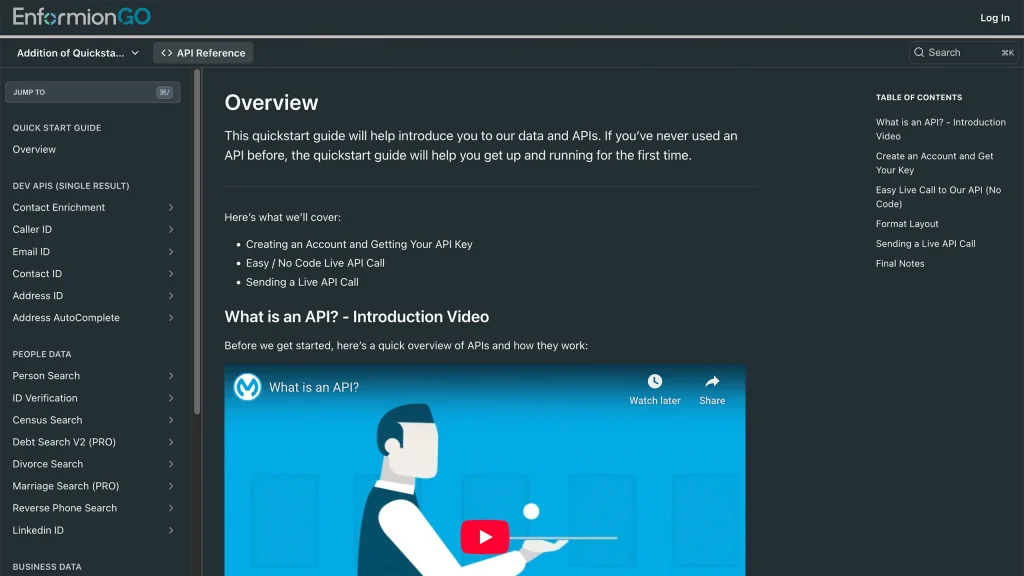
Enformiongo api documentation readme

Getting familiar with how to use EnformionGO’s search and API products is very helpful in deciding what products you’ll want to use. We’ve created this quick start guide to walk new users through how to use EnformionGO. Happy searching!

Pro License Data

Filter Pro License Data using the fields below.

  • License Status
    • Multi select
      Description: Select the license status(es) you want to target. You can select more than one


  • License Issuing State
    • Multi select
      Description: Select the license issuing state(s) you want to target. You can select more than one.


  • License Issuing Date Range
    • Select the date range for when the target matches had their license issued.
  • License Expiration Date Range
    • Select the date range for when the target matches had their license expire.

Workplace & Corporation Data

Filter Workplace Data using the fields below.

  • Years at Company
    • Field type: input
    • Description: Enter the number of years at a company for your target matches.
  • Job Title Level
    • Multi select
      Description: Select the job title level(s) you want to target. You can select more than one.
  • Department
    • Multi select
      Description: Select the department(s) you want to target. You can select more than one.
  • Company Revenue Range
    • Field type: range – min/max ($0 – $100,000,000)
    • Description: Set the company revenue range for your matches
  • Company Size
    • Field type: range – min/max (0 – 10,000)
    • Description: Set the company size range for your matches
  • Office Location City
    • Field type: input
    • Description: Enter the office location city name you want to target
 
  • Office Location County
    • Field type: input
    • Description: Enter the office location county name you want to target
  • Office Location State
    • Field type: Multi-select
    • Description: Select the office location state(s) you want to target. You can select more than one.
  • Office Location Zip
    • Field type: input
    • Description: Enter the office location zip code you want to target

Property Data

Filter Property Data using the fields below.

  • Number of Property Owners
    • Field type: range – min/max (0 – 50)
    • Description: Set the range of the number of owners for one of the properties linked to each match you want to target
  • Land Use Code
    • Field type: input
    • Description: Enter the land use code (number only) for one of the properties linked to each match you want to target. For example, for “1100: Single-Family Home” you would enter “1100”
  • Total Square Footage
    • Field type: input
    • Description: Enter the total square footage (number only) for one of the properties linked to each match you want to target

  • Property Value
    • Field type: range – min/max (0 – 10 million)
    • Description: Set the range of the property value for one of the properties linked to each match you want to target
  • Mortgage Amount
    • Field type: input
    • Description: Enter the mortgage amount (number only) for one of the properties linked to each match you want to target
  • Purchase Date
    • Field type: input
    • Description: Enter the purchase date (number only) for one of the properties linked to each match you want to target
  • Property Type
    • Multi select
      Description: Select the property type(s) you want to target. You can select more than one.
  • Owner Type
    • Multi select
      Description: Select the owner type(s) you want to target. You can select more than one.
  • Owner Status
    • Multi select
      Description: Select the owner status(es) you want to target. You can select more than one.
  • Owner Occupied
    • Field type: Boolean
    • Description: Select if you require for one of the properties to be owner-occupied

Consumer Insights Data

Filter Consumer Insights Data using the fields below.

  • Presence of Children
    • Field type: Boolean
    • Description: Select if you require matches with children present in the household
    •  
  • Credit Card Holder
    • Field type: Boolean
    • Description: Select if you require matches to be a credit card holder
  • Interest in Travel
    • Field type: Boolean
    • Description: Select if you require matches to be interested in travel
  • Interest in Cooking
    • Field type: Boolean
    • Description: Select if you require matches to be interested in cooking
  • Interest in Reading
    • Field type: Boolean
    • Description: Select if you require matches to be interested in reading


  • Smoker
    • Field type: Boolean
    • Description: Select if you require matches to be a smoker
  • Exercise Enthusiast
    • Field type: Boolean
    • Description: Select if you require matches to be an exercise enthusiast
  • Exercise with Running
    • Field type: Boolean
    • Description: Select if you require matches who run for exercise
  • Exercise with Walking
    • Field type: Boolean
    • Description: Select if you require matches who walk for exercise
  • Does Aerobic Exercise
    • Field type: Boolean
    • Description: Select if you require matches who do aerobic exercise
  • Into Camping / Hiking
    • Field type: Boolean
    • Description: Select if you require matches who are interested in camping / hiking 
  • Into Natural Foods
    • Field type: Boolean
    • Description: Select if you require matches who are interested in natural foods
  • Into Beauty Health
    • Field type: Boolean
    • Description: Select if you require matches who are interested in health / beauty
  • Into Medical Health
    • Field type: Boolean
    • Description: Select if you require matches who are interested in health / medicine
  • Into the Outdoors
    • Field type: Boolean
    • Description: Select if you require matches who are interested in the outdoors
  • Into Sporty Living
    • Field type: Boolean
    • Description: Select if you require matches who are interested in the outdoors

Location Data

Filter Location Data using the fields below.

  • City
    • Field type: input
    • Description: Enter the city name you want to target
  • County
    • Field type: input
    • Description: Enter the county name you want to target
  • State
    • Field type: Multi-select
    • Description: Select the state(s) you want to target. You can select more than one.
  • Zip
    • Field type: input
    • Description: Enter the zip code you want to target
  • Population Designation
    • Field type: Multi-select
    • Description: Select the population type(s) you want to target. You can select more than one.

Person Data

Filter Person Data using the fields below.

  • Age
    • Field type: range – min/max (18 – 120)
    • Description: Set the age range for your matches
  • Education Level
    • Multi select
      Description: Select the education level(s) you want to target. You can select more than one.
  • Credit Score
    • Field type: range – min/max (0 – 850)
    • Description: Set the credit score range for your matches
  • Estimated Income
    • Field type: range – min/max ($0 – $250,000)
    • Description: Set the income range for your matches. Max setting is $250,000+.
  • Number of Properties Owned
    • Field type: range – min/max (0 – 50)
    • Description: Set the owned properties range for your matches
  • Occupation Level
    • Multi select
      Description: Select the occupation level(s) you want to target. You can select more than one.
  • Marital Status
    • Multi select
      Description: Select the marital status(es) you want to target. You can select more than one.
  • Gender
    • Multi select
      Description: Select the gender(s) you want to target. You can select more than one. Default is all.