JSON API: A Simple Guide to Data Integration

Modern business tools often need to exchange information without forcing people to copy records from one system to another. A JSON API provides a practical way to make that exchange happen. It gives applications a consistent language for requesting, receiving, and updating structured data.

For developers and business teams, understanding the basics makes integration planning clearer. The goal is not simply to connect two systems, but to move the right data in a predictable form that another application can use. EnformionGO supports this kind of work through self-service searches and API integrations for appropriate research, verification, and data-collection workflows.

Explore EnformionGO to see how data intelligence can fit into your workflow.

What Is a JSON API?

JSON stands for JavaScript Object Notation. It is a text-based format that organizes information into familiar pairs, arrays, and nested objects. Because JSON is readable by both people and software, it is widely used to exchange data between web services.

An API, or application programming interface, defines how one system can communicate with another. A JSON API combines those ideas: a client sends a request to an endpoint, and the service returns a structured JSON response. The client can then map the returned fields into its own application, database, or research process.

How JSON APIs Move Data Between Systems

How JSON APIs Move Data Between Systems

A typical exchange begins when an application sends a request to a defined API endpoint. The request may include parameters that identify what information is needed. The service processes the request and sends back a response containing a status and a JSON payload.

The receiving system then parses that payload and assigns relevant values to its own fields. This separation is useful: each application can maintain its own internal structure while relying on an agreed format at the point of exchange.

Common steps include:

  • Authenticating the request with approved credentials.
  • Sending parameters in the format required by the endpoint.
  • Reading the response status before processing the payload.
  • Mapping returned fields to the destination system.
  • Handling missing values and errors deliberately.

Key Parts of a JSON API Request

Most integrations depend on a few core elements. The endpoint identifies the resource or action. The HTTP method describes the intended operation, such as retrieving or submitting information. Headers carry details such as content type and authentication, while parameters or a request body provide the input.

The response matters just as much as the request. Status codes indicate whether an operation succeeded, failed, or needs additional handling. The JSON body contains the returned records or error details. Reviewing the API documentation for required fields, response structure, limits, and error behavior helps developers build predictable processing rules.

Start Free when you are ready to explore EnformionGO’s API options.

Key Parts of a JSON API Request

Building a Practical Data Integration Workflow

Start with a defined business question and list only the data needed to answer it. For example, a team might use data to support market research, sales research, business research, or cross-referencing of existing records. Keeping the purpose specific makes field mapping and validation easier.

Next, document the source fields, destination fields, expected formats, and treatment of empty or conflicting values. Test with representative requests before expanding volume. Log response statuses and parsing errors so the team can investigate problems without guessing. Revisit the workflow when schemas or business requirements change.

EnformionGO provides real-time access to identity, people, business, asset, and court record data and draws on more than 6,000 unique data sources for public-record inquiries and cross-referencing existing data.

Put JSON API Integration to Work

A reliable JSON API integration is built on clear requirements, careful field mapping, documented error handling, and ongoing review. Once those foundations are in place, structured data can move into appropriate research, verification, enrichment, and collection workflows with less manual handling.

The next step is to identify the specific information your workflow needs and compare it with the available API documentation. Get Started with EnformionGO to begin exploring a data-integration approach for your business research needs.
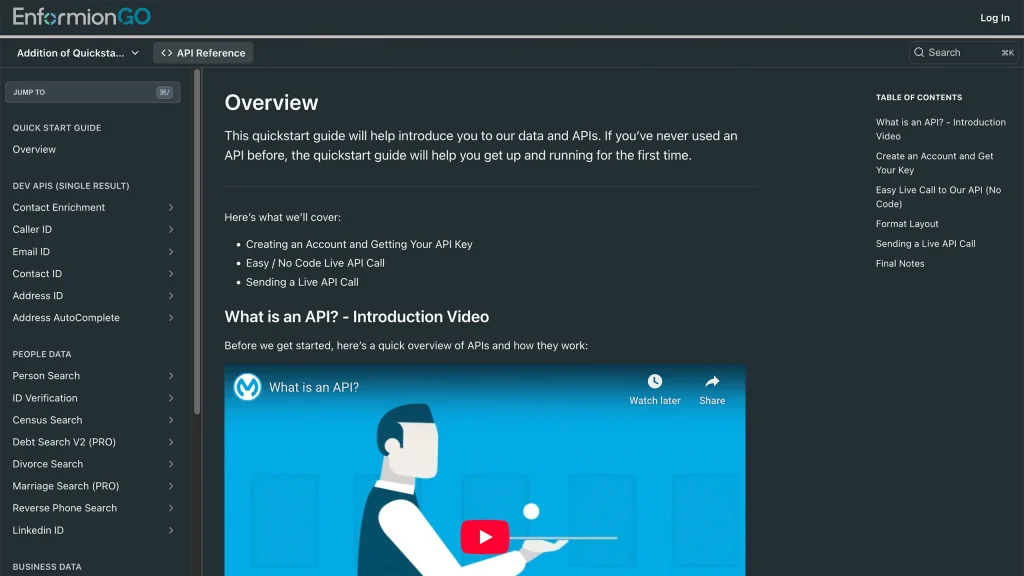
Enformiongo api documentation readme

Getting familiar with how to use EnformionGO’s search and API products is very helpful in deciding what products you’ll want to use. We’ve created this quick start guide to walk new users through how to use EnformionGO. Happy searching!

Pro License Data

Filter Pro License Data using the fields below.

  • License Status
    • Multi select
      Description: Select the license status(es) you want to target. You can select more than one


  • License Issuing State
    • Multi select
      Description: Select the license issuing state(s) you want to target. You can select more than one.


  • License Issuing Date Range
    • Select the date range for when the target matches had their license issued.
  • License Expiration Date Range
    • Select the date range for when the target matches had their license expire.

Workplace & Corporation Data

Filter Workplace Data using the fields below.

  • Years at Company
    • Field type: input
    • Description: Enter the number of years at a company for your target matches.
  • Job Title Level
    • Multi select
      Description: Select the job title level(s) you want to target. You can select more than one.
  • Department
    • Multi select
      Description: Select the department(s) you want to target. You can select more than one.
  • Company Revenue Range
    • Field type: range – min/max ($0 – $100,000,000)
    • Description: Set the company revenue range for your matches
  • Company Size
    • Field type: range – min/max (0 – 10,000)
    • Description: Set the company size range for your matches
  • Office Location City
    • Field type: input
    • Description: Enter the office location city name you want to target
 
  • Office Location County
    • Field type: input
    • Description: Enter the office location county name you want to target
  • Office Location State
    • Field type: Multi-select
    • Description: Select the office location state(s) you want to target. You can select more than one.
  • Office Location Zip
    • Field type: input
    • Description: Enter the office location zip code you want to target

Property Data

Filter Property Data using the fields below.

  • Number of Property Owners
    • Field type: range – min/max (0 – 50)
    • Description: Set the range of the number of owners for one of the properties linked to each match you want to target
  • Land Use Code
    • Field type: input
    • Description: Enter the land use code (number only) for one of the properties linked to each match you want to target. For example, for “1100: Single-Family Home” you would enter “1100”
  • Total Square Footage
    • Field type: input
    • Description: Enter the total square footage (number only) for one of the properties linked to each match you want to target

  • Property Value
    • Field type: range – min/max (0 – 10 million)
    • Description: Set the range of the property value for one of the properties linked to each match you want to target
  • Mortgage Amount
    • Field type: input
    • Description: Enter the mortgage amount (number only) for one of the properties linked to each match you want to target
  • Purchase Date
    • Field type: input
    • Description: Enter the purchase date (number only) for one of the properties linked to each match you want to target
  • Property Type
    • Multi select
      Description: Select the property type(s) you want to target. You can select more than one.
  • Owner Type
    • Multi select
      Description: Select the owner type(s) you want to target. You can select more than one.
  • Owner Status
    • Multi select
      Description: Select the owner status(es) you want to target. You can select more than one.
  • Owner Occupied
    • Field type: Boolean
    • Description: Select if you require for one of the properties to be owner-occupied

Consumer Insights Data

Filter Consumer Insights Data using the fields below.

  • Presence of Children
    • Field type: Boolean
    • Description: Select if you require matches with children present in the household
    •  
  • Credit Card Holder
    • Field type: Boolean
    • Description: Select if you require matches to be a credit card holder
  • Interest in Travel
    • Field type: Boolean
    • Description: Select if you require matches to be interested in travel
  • Interest in Cooking
    • Field type: Boolean
    • Description: Select if you require matches to be interested in cooking
  • Interest in Reading
    • Field type: Boolean
    • Description: Select if you require matches to be interested in reading


  • Smoker
    • Field type: Boolean
    • Description: Select if you require matches to be a smoker
  • Exercise Enthusiast
    • Field type: Boolean
    • Description: Select if you require matches to be an exercise enthusiast
  • Exercise with Running
    • Field type: Boolean
    • Description: Select if you require matches who run for exercise
  • Exercise with Walking
    • Field type: Boolean
    • Description: Select if you require matches who walk for exercise
  • Does Aerobic Exercise
    • Field type: Boolean
    • Description: Select if you require matches who do aerobic exercise
  • Into Camping / Hiking
    • Field type: Boolean
    • Description: Select if you require matches who are interested in camping / hiking 
  • Into Natural Foods
    • Field type: Boolean
    • Description: Select if you require matches who are interested in natural foods
  • Into Beauty Health
    • Field type: Boolean
    • Description: Select if you require matches who are interested in health / beauty
  • Into Medical Health
    • Field type: Boolean
    • Description: Select if you require matches who are interested in health / medicine
  • Into the Outdoors
    • Field type: Boolean
    • Description: Select if you require matches who are interested in the outdoors
  • Into Sporty Living
    • Field type: Boolean
    • Description: Select if you require matches who are interested in the outdoors

Location Data

Filter Location Data using the fields below.

  • City
    • Field type: input
    • Description: Enter the city name you want to target
  • County
    • Field type: input
    • Description: Enter the county name you want to target
  • State
    • Field type: Multi-select
    • Description: Select the state(s) you want to target. You can select more than one.
  • Zip
    • Field type: input
    • Description: Enter the zip code you want to target
  • Population Designation
    • Field type: Multi-select
    • Description: Select the population type(s) you want to target. You can select more than one.

Person Data

Filter Person Data using the fields below.

  • Age
    • Field type: range – min/max (18 – 120)
    • Description: Set the age range for your matches
  • Education Level
    • Multi select
      Description: Select the education level(s) you want to target. You can select more than one.
  • Credit Score
    • Field type: range – min/max (0 – 850)
    • Description: Set the credit score range for your matches
  • Estimated Income
    • Field type: range – min/max ($0 – $250,000)
    • Description: Set the income range for your matches. Max setting is $250,000+.
  • Number of Properties Owned
    • Field type: range – min/max (0 – 50)
    • Description: Set the owned properties range for your matches
  • Occupation Level
    • Multi select
      Description: Select the occupation level(s) you want to target. You can select more than one.
  • Marital Status
    • Multi select
      Description: Select the marital status(es) you want to target. You can select more than one.
  • Gender
    • Multi select
      Description: Select the gender(s) you want to target. You can select more than one. Default is all.