
People Data API: Connect Apps to People Data

Many business applications depend on accurate information about people, from CRM records to research tools and internal databases. A people data API connects those applications to a larger body of identity and people data, so your systems can look up, verify, and enrich records automatically instead of relying on manual searches.

This guide explains what a people data API does, where it fits in common business workflows, and what to evaluate before you build an integration. If you want to explore as you read, you can create a free account with EnformionGO.

What a People Data API Does

An API, or application programming interface, lets one piece of software request information from another. A people data API applies that idea to person-level data. Your application sends a request with known details, and the API returns structured results your system can use.

  • Look up records: Search using known details, such as a name or address.
  • Verify information: Confirm that the details you already hold are consistent and current.
  • Enrich records: Add missing details to existing profiles in your database.
  • Cross-reference data: Compare your records against public-record sources to spot gaps or conflicts.


Because results come back in a structured format, developers can route them directly into the workflows that need them.

People data api connect apps to people data blog

Common Business Use Cases

A people data API is most valuable when it supports a clear, appropriate business purpose. Teams commonly use one for:

  • Data verification: Checking contact and identity details before records enter a CRM or marketing list.
  • Data enrichment: Filling in incomplete records so teams have fuller context.
  • Sales and market research: Understanding prospects and audiences more clearly.
  • Real estate research: Connecting people, property, and address information during research.
  • Record cleanup: Identifying duplicates and outdated entries across systems.


In each case, the API removes repetitive lookups and helps keep data more consistent across tools.

How an API Integration Works

Most people data APIs follow a familiar request-and-response pattern, which makes them approachable for development teams.

1. Authenticate

Your application identifies itself with credentials issued by the data provider, which controls access to the service.

2. Send a request

The application submits the details it already has, such as a name and address, to the appropriate endpoint.

3. Use the response

The API returns structured data that your system can store, display, or compare against existing records.

EnformionGO offers real-time API access to identity, people, business, asset, and court record data, along with self-service searches for one-off lookups. Start Free to explore the options.

People data api connect apps to people data blog

What to Evaluate Before You Integrate

Before committing development time, review a few practical factors:

  • Source breadth: More sources support stronger cross-referencing. EnformionGO draws on more than 6,000 unique data sources.
  • Data freshness: Real-time access helps your applications work with current information.
  • Data coverage: Confirm the API returns the data types your workflow needs.
  • Use case fit: Make sure your intended use aligns with the provider’s supported business applications.
  • Developer experience: Clear documentation and predictable responses make integration smoother.


Running a small pilot with real records is a practical way to confirm fit before scaling up.

Bring People Data Into Your Applications

A people data API turns scattered lookups into a repeatable, automated process. When your applications can verify and enrich records on their own, teams spend less time on manual research and more time using data that is complete and consistent.

To see how this works in practice, review the guidance below and Get Started with EnformionGO.
Enformiongo api documentation readme

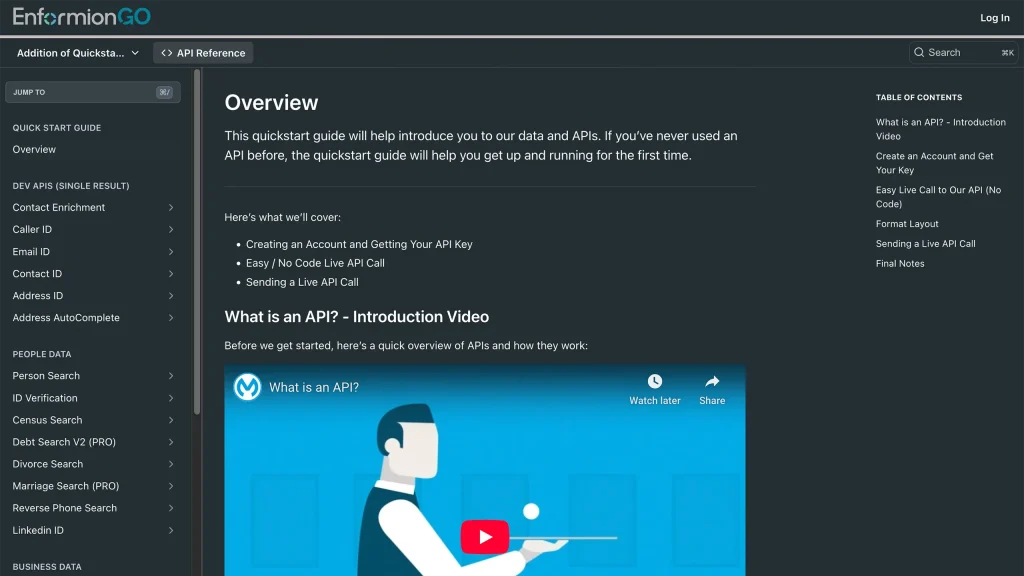
Getting familiar with how to use EnformionGO’s search and API products is very helpful in deciding what products you’ll want to use. We’ve created this quick start guide to walk new users through how to use EnformionGO. Happy searching!

Pro License Data

Filter Pro License Data using the fields below.

  • License Status
    • Multi select
      Description: Select the license status(es) you want to target. You can select more than one


  • License Issuing State
    • Multi select
      Description: Select the license issuing state(s) you want to target. You can select more than one.


  • License Issuing Date Range
    • Select the date range for when the target matches had their license issued.
  • License Expiration Date Range
    • Select the date range for when the target matches had their license expire.

Workplace & Corporation Data

Filter Workplace Data using the fields below.

  • Years at Company
    • Field type: input
    • Description: Enter the number of years at a company for your target matches.
  • Job Title Level
    • Multi select
      Description: Select the job title level(s) you want to target. You can select more than one.
  • Department
    • Multi select
      Description: Select the department(s) you want to target. You can select more than one.
  • Company Revenue Range
    • Field type: range – min/max ($0 – $100,000,000)
    • Description: Set the company revenue range for your matches
  • Company Size
    • Field type: range – min/max (0 – 10,000)
    • Description: Set the company size range for your matches
  • Office Location City
    • Field type: input
    • Description: Enter the office location city name you want to target
 
  • Office Location County
    • Field type: input
    • Description: Enter the office location county name you want to target
  • Office Location State
    • Field type: Multi-select
    • Description: Select the office location state(s) you want to target. You can select more than one.
  • Office Location Zip
    • Field type: input
    • Description: Enter the office location zip code you want to target

Property Data

Filter Property Data using the fields below.

  • Number of Property Owners
    • Field type: range – min/max (0 – 50)
    • Description: Set the range of the number of owners for one of the properties linked to each match you want to target
  • Land Use Code
    • Field type: input
    • Description: Enter the land use code (number only) for one of the properties linked to each match you want to target. For example, for “1100: Single-Family Home” you would enter “1100”
  • Total Square Footage
    • Field type: input
    • Description: Enter the total square footage (number only) for one of the properties linked to each match you want to target

  • Property Value
    • Field type: range – min/max (0 – 10 million)
    • Description: Set the range of the property value for one of the properties linked to each match you want to target
  • Mortgage Amount
    • Field type: input
    • Description: Enter the mortgage amount (number only) for one of the properties linked to each match you want to target
  • Purchase Date
    • Field type: input
    • Description: Enter the purchase date (number only) for one of the properties linked to each match you want to target
  • Property Type
    • Multi select
      Description: Select the property type(s) you want to target. You can select more than one.
  • Owner Type
    • Multi select
      Description: Select the owner type(s) you want to target. You can select more than one.
  • Owner Status
    • Multi select
      Description: Select the owner status(es) you want to target. You can select more than one.
  • Owner Occupied
    • Field type: Boolean
    • Description: Select if you require for one of the properties to be owner-occupied

Consumer Insights Data

Filter Consumer Insights Data using the fields below.

  • Presence of Children
    • Field type: Boolean
    • Description: Select if you require matches with children present in the household
    •  
  • Credit Card Holder
    • Field type: Boolean
    • Description: Select if you require matches to be a credit card holder
  • Interest in Travel
    • Field type: Boolean
    • Description: Select if you require matches to be interested in travel
  • Interest in Cooking
    • Field type: Boolean
    • Description: Select if you require matches to be interested in cooking
  • Interest in Reading
    • Field type: Boolean
    • Description: Select if you require matches to be interested in reading


  • Smoker
    • Field type: Boolean
    • Description: Select if you require matches to be a smoker
  • Exercise Enthusiast
    • Field type: Boolean
    • Description: Select if you require matches to be an exercise enthusiast
  • Exercise with Running
    • Field type: Boolean
    • Description: Select if you require matches who run for exercise
  • Exercise with Walking
    • Field type: Boolean
    • Description: Select if you require matches who walk for exercise
  • Does Aerobic Exercise
    • Field type: Boolean
    • Description: Select if you require matches who do aerobic exercise
  • Into Camping / Hiking
    • Field type: Boolean
    • Description: Select if you require matches who are interested in camping / hiking 
  • Into Natural Foods
    • Field type: Boolean
    • Description: Select if you require matches who are interested in natural foods
  • Into Beauty Health
    • Field type: Boolean
    • Description: Select if you require matches who are interested in health / beauty
  • Into Medical Health
    • Field type: Boolean
    • Description: Select if you require matches who are interested in health / medicine
  • Into the Outdoors
    • Field type: Boolean
    • Description: Select if you require matches who are interested in the outdoors
  • Into Sporty Living
    • Field type: Boolean
    • Description: Select if you require matches who are interested in the outdoors

Location Data

Filter Location Data using the fields below.

  • City
    • Field type: input
    • Description: Enter the city name you want to target
  • County
    • Field type: input
    • Description: Enter the county name you want to target
  • State
    • Field type: Multi-select
    • Description: Select the state(s) you want to target. You can select more than one.
  • Zip
    • Field type: input
    • Description: Enter the zip code you want to target
  • Population Designation
    • Field type: Multi-select
    • Description: Select the population type(s) you want to target. You can select more than one.

Person Data

Filter Person Data using the fields below.

  • Age
    • Field type: range – min/max (18 – 120)
    • Description: Set the age range for your matches
  • Education Level
    • Multi select
      Description: Select the education level(s) you want to target. You can select more than one.
  • Credit Score
    • Field type: range – min/max (0 – 850)
    • Description: Set the credit score range for your matches
  • Estimated Income
    • Field type: range – min/max ($0 – $250,000)
    • Description: Set the income range for your matches. Max setting is $250,000+.
  • Number of Properties Owned
    • Field type: range – min/max (0 – 50)
    • Description: Set the owned properties range for your matches
  • Occupation Level
    • Multi select
      Description: Select the occupation level(s) you want to target. You can select more than one.
  • Marital Status
    • Multi select
      Description: Select the marital status(es) you want to target. You can select more than one.
  • Gender
    • Multi select
      Description: Select the gender(s) you want to target. You can select more than one. Default is all.