
Reverse Email Lookup: What It Is and How It Works

An email address can be more than a way to communicate. In business research, it can also serve as a useful starting point for cross-referencing existing information and developing a clearer picture of the person associated with that email.

A reverse email lookup starts with an email address and searches for available information connected to it. This can support data verification, research, data enrichment, and other workflows where understanding the context behind existing information matters.

With EnformionGO, business users can access identity and public-record information through self-service searches and API integrations.

Get Started with EnformionGO

What Is a Reverse Email Lookup?

A reverse email lookup is a search that uses an email address as the starting point for finding associated information. Instead of beginning with a person’s name and looking for contact information, the process works in reverse: you begin with the email address and use available data to better understand the identity connected to it.

This can be useful when an organization already has an email address but needs additional context for appropriate business research or verification.

For example, a marketer reviewing existing audience data might use an email address as one element for cross-referencing information and improving the completeness of a record.

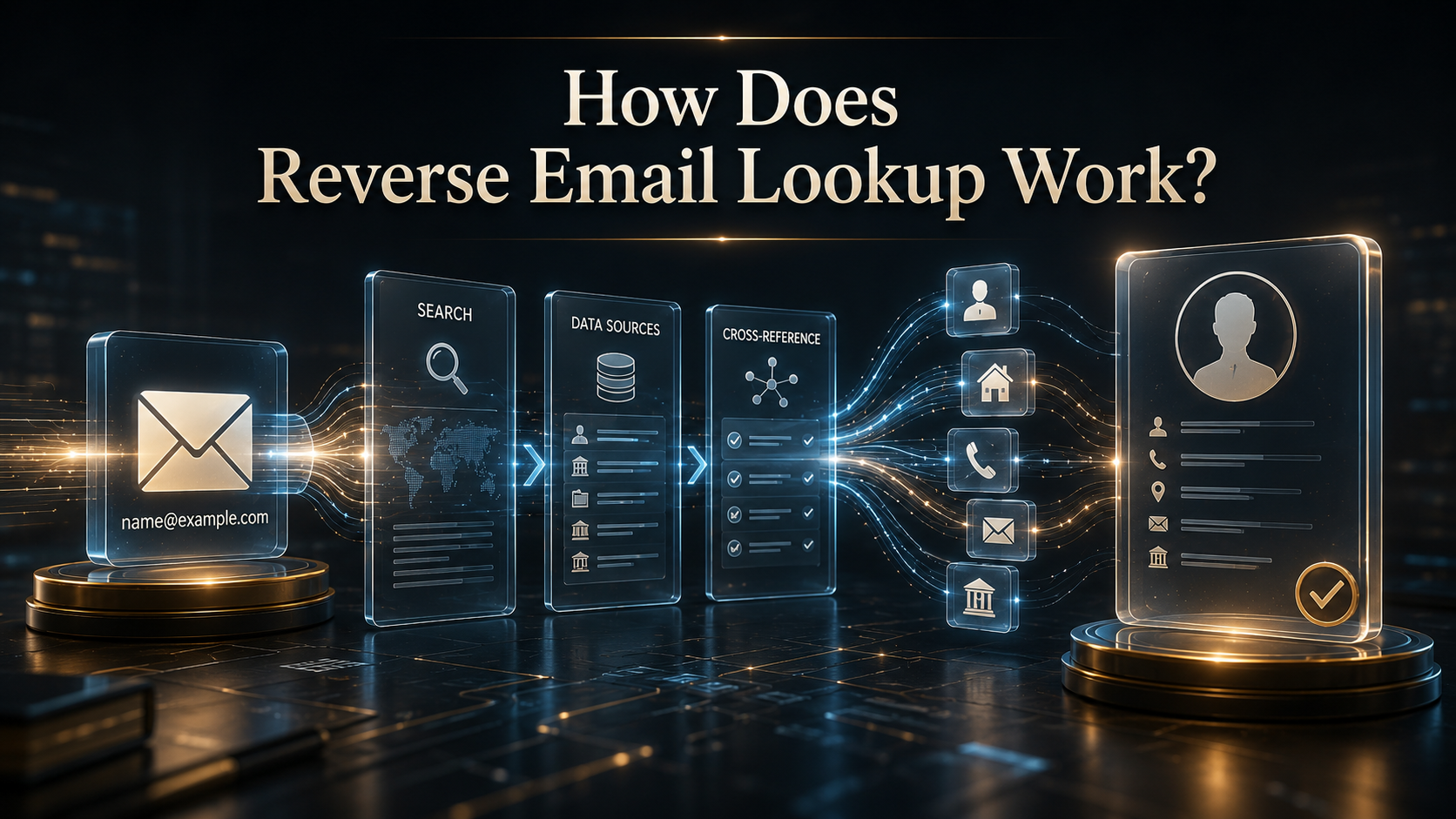
How Does Reverse Email Lookup Work?

  1. Start with an email address. The known email becomes the search input.
  2. Search available records and data. The email is compared against available information that may be associated with it.
  3. Cross-reference potential connections. Related identity and record information can provide additional context.
  4. Review the results. The available information can then support research, verification, or data-collection workflows.


EnformionGO utilizes information from more than 6,000 unique data sources to perform public-record inquiries and cross-reference existing data.
Explore EnformionGO

Reverse Email Lookup Workflow

What Information Can Reverse Email Research Add?

The value of reverse email research is not simply finding more data. It is connecting an existing data point with additional context that may be useful for a particular research workflow.

Depending on the information available, cross-referencing an email address can help researchers examine connections between identity and other relevant records.

That additional context can help transform a standalone email address into a more useful research starting point. The resulting information can then be reviewed alongside existing records rather than treating the email address as an isolated piece of data.

Where Reverse Email Lookup Fits Into Data Research

Reverse email lookup can support several appropriate business workflows, particularly when an organization already has data that needs additional research or verification.

Common applications can include:

  • Data verification: Cross-referencing existing information during research.
  • Data enrichment: Adding useful context to records already collected.
  • Marketing research: Better understanding existing audience information.
  • Sales research: Researching available information connected to existing data.
  • Business research: Connecting individual data points to broader identity or record information.


These workflows make reverse email lookup part of a broader process of turning fragmented information into more organized, useful data.

Reverse Email Lookup Data Visualization

Reverse Email Lookup and Data Enrichment

Reverse email lookup becomes especially useful when it is treated as part of a larger data enrichment process.

Business databases can contain records with different levels of detail. An email address may be available while other useful information is incomplete or stored separately. Cross-referencing that email against additional information can help create more context around an existing record.

For marketers, sales professionals, real estate professionals, developers, and other business researchers, this can make existing datasets more useful for appropriate research and data-collection activities.

Using Reverse Email Lookup Effectively

A useful reverse email workflow starts with a clear research purpose. Before searching, determine what information you already have and what additional context would make the record more useful.

A simple workflow can be:

  1. Begin with a known email address.
  2. Review the available associated information.
  3. Cross-reference results with existing records.
  4. Use relevant information to support your research or data-verification process.
  5. Keep the resulting data organized for the workflow it supports.


EnformionGO provides real-time access to identity, people, business, asset, and court record data through self-service searches and API integrations, giving users multiple ways to incorporate data research into their workflows.

Create a Free Account

Turn an Email Address Into a Better Research Starting Point

Reverse email lookup is most useful when an email address is the beginning of the research rather than the end of it. By cross-referencing existing information, business users can develop additional context for data verification, enrichment, marketing research, sales research, and other appropriate research workflows.

EnformionGO provides a practical way to explore identity and public-record data through self-service searches and APIs, making it easier to incorporate data research into an existing workflow.

Ready to explore the data connected to the information you already have? Get Started
Enformiongo api documentation readme

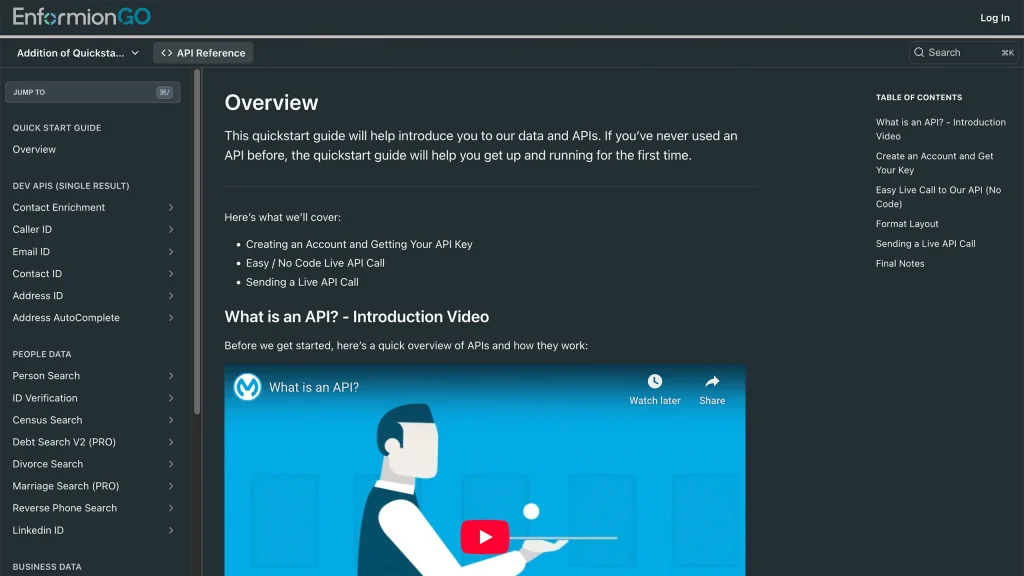
Getting familiar with how to use EnformionGO’s search and API products is very helpful in deciding what products you’ll want to use. We’ve created this quick start guide to walk new users through how to use EnformionGO. Happy searching!

Pro License Data

Filter Pro License Data using the fields below.

  • License Status
    • Multi select
      Description: Select the license status(es) you want to target. You can select more than one


  • License Issuing State
    • Multi select
      Description: Select the license issuing state(s) you want to target. You can select more than one.


  • License Issuing Date Range
    • Select the date range for when the target matches had their license issued.
  • License Expiration Date Range
    • Select the date range for when the target matches had their license expire.

Workplace & Corporation Data

Filter Workplace Data using the fields below.

  • Years at Company
    • Field type: input
    • Description: Enter the number of years at a company for your target matches.
  • Job Title Level
    • Multi select
      Description: Select the job title level(s) you want to target. You can select more than one.
  • Department
    • Multi select
      Description: Select the department(s) you want to target. You can select more than one.
  • Company Revenue Range
    • Field type: range – min/max ($0 – $100,000,000)
    • Description: Set the company revenue range for your matches
  • Company Size
    • Field type: range – min/max (0 – 10,000)
    • Description: Set the company size range for your matches
  • Office Location City
    • Field type: input
    • Description: Enter the office location city name you want to target
 
  • Office Location County
    • Field type: input
    • Description: Enter the office location county name you want to target
  • Office Location State
    • Field type: Multi-select
    • Description: Select the office location state(s) you want to target. You can select more than one.
  • Office Location Zip
    • Field type: input
    • Description: Enter the office location zip code you want to target

Property Data

Filter Property Data using the fields below.

  • Number of Property Owners
    • Field type: range – min/max (0 – 50)
    • Description: Set the range of the number of owners for one of the properties linked to each match you want to target
  • Land Use Code
    • Field type: input
    • Description: Enter the land use code (number only) for one of the properties linked to each match you want to target. For example, for “1100: Single-Family Home” you would enter “1100”
  • Total Square Footage
    • Field type: input
    • Description: Enter the total square footage (number only) for one of the properties linked to each match you want to target

  • Property Value
    • Field type: range – min/max (0 – 10 million)
    • Description: Set the range of the property value for one of the properties linked to each match you want to target
  • Mortgage Amount
    • Field type: input
    • Description: Enter the mortgage amount (number only) for one of the properties linked to each match you want to target
  • Purchase Date
    • Field type: input
    • Description: Enter the purchase date (number only) for one of the properties linked to each match you want to target
  • Property Type
    • Multi select
      Description: Select the property type(s) you want to target. You can select more than one.
  • Owner Type
    • Multi select
      Description: Select the owner type(s) you want to target. You can select more than one.
  • Owner Status
    • Multi select
      Description: Select the owner status(es) you want to target. You can select more than one.
  • Owner Occupied
    • Field type: Boolean
    • Description: Select if you require for one of the properties to be owner-occupied

Consumer Insights Data

Filter Consumer Insights Data using the fields below.

  • Presence of Children
    • Field type: Boolean
    • Description: Select if you require matches with children present in the household
    •  
  • Credit Card Holder
    • Field type: Boolean
    • Description: Select if you require matches to be a credit card holder
  • Interest in Travel
    • Field type: Boolean
    • Description: Select if you require matches to be interested in travel
  • Interest in Cooking
    • Field type: Boolean
    • Description: Select if you require matches to be interested in cooking
  • Interest in Reading
    • Field type: Boolean
    • Description: Select if you require matches to be interested in reading


  • Smoker
    • Field type: Boolean
    • Description: Select if you require matches to be a smoker
  • Exercise Enthusiast
    • Field type: Boolean
    • Description: Select if you require matches to be an exercise enthusiast
  • Exercise with Running
    • Field type: Boolean
    • Description: Select if you require matches who run for exercise
  • Exercise with Walking
    • Field type: Boolean
    • Description: Select if you require matches who walk for exercise
  • Does Aerobic Exercise
    • Field type: Boolean
    • Description: Select if you require matches who do aerobic exercise
  • Into Camping / Hiking
    • Field type: Boolean
    • Description: Select if you require matches who are interested in camping / hiking 
  • Into Natural Foods
    • Field type: Boolean
    • Description: Select if you require matches who are interested in natural foods
  • Into Beauty Health
    • Field type: Boolean
    • Description: Select if you require matches who are interested in health / beauty
  • Into Medical Health
    • Field type: Boolean
    • Description: Select if you require matches who are interested in health / medicine
  • Into the Outdoors
    • Field type: Boolean
    • Description: Select if you require matches who are interested in the outdoors
  • Into Sporty Living
    • Field type: Boolean
    • Description: Select if you require matches who are interested in the outdoors

Location Data

Filter Location Data using the fields below.

  • City
    • Field type: input
    • Description: Enter the city name you want to target
  • County
    • Field type: input
    • Description: Enter the county name you want to target
  • State
    • Field type: Multi-select
    • Description: Select the state(s) you want to target. You can select more than one.
  • Zip
    • Field type: input
    • Description: Enter the zip code you want to target
  • Population Designation
    • Field type: Multi-select
    • Description: Select the population type(s) you want to target. You can select more than one.

Person Data

Filter Person Data using the fields below.

  • Age
    • Field type: range – min/max (18 – 120)
    • Description: Set the age range for your matches
  • Education Level
    • Multi select
      Description: Select the education level(s) you want to target. You can select more than one.
  • Credit Score
    • Field type: range – min/max (0 – 850)
    • Description: Set the credit score range for your matches
  • Estimated Income
    • Field type: range – min/max ($0 – $250,000)
    • Description: Set the income range for your matches. Max setting is $250,000+.
  • Number of Properties Owned
    • Field type: range – min/max (0 – 50)
    • Description: Set the owned properties range for your matches
  • Occupation Level
    • Multi select
      Description: Select the occupation level(s) you want to target. You can select more than one.
  • Marital Status
    • Multi select
      Description: Select the marital status(es) you want to target. You can select more than one.
  • Gender
    • Multi select
      Description: Select the gender(s) you want to target. You can select more than one. Default is all.