
Sales Prospecting Tools: What Teams Need in 2026

Sales prospecting tools help teams turn a broad market into a focused research workflow. For a team planning its 2026 toolkit, the useful question is practical: can a representative identify relevant businesses, verify information, and understand why a prospect belongs on the list?

A workable toolkit combines clear targeting, dependable research, and a repeatable process for reviewing records. Start with the decisions your team needs to make, then choose tools that support them.

Build a Research Workflow Before a Tool Stack

Define your target market before collecting more records. Document the business characteristics that matter, the information needed to research an account, and the conditions that make a record ready for outreach.

  • Specify the audience and business research purpose.
  • Identify which fields require verification.
  • Decide who reviews conflicting or incomplete information.


This shared process makes tool evaluation more concrete. A feature is useful when it supports an identified task.

Sales prospecting tools what teams need in 2026 blog

Look for Information You Can Cross-Reference

Prospecting depends on more than finding a name. Teams need to distinguish similar records, review missing information, and check whether details fit the business they are researching. Preserve the source and date of a finding where available so another team member can understand the reasoning.

EnformionGO provides real-time access to identity, people, business, asset, and court record data through self-service searches and API integrations. It draws on more than 6,000 unique data sources for public-record inquiries and cross-referencing existing data. Use the information relevant to your sales research purpose, rather than collecting every available detail.

Choose Search or API Access Around the Task

Self-service searches suit research that benefits from individual review. API integrations can support a defined data workflow when a team has the technical resources to build and maintain it. Evaluate the required inputs, available outputs, and handling of incomplete results before selecting an approach.

A small sample of representative research tasks can reveal whether the access method fits your process. EnformionGO offers both self-service searches and API integrations. Explore EnformionGO to begin evaluating your research needs.


Sales prospecting tools what teams need in 2026 blog

Evaluate Tools With a Consistent Checklist

Use the same questions for every candidate:

  • Does the information support the team’s target-market research?
  • Can representatives review ambiguous records before using them?
  • What effort is required to maintain the workflow?
  • How will the team handle access, retention, and corrections?


Compare the complete process, including review time and ongoing maintenance. Avoid treating the largest list as the most useful outcome; relevance and understandable records matter to the work.

Turn Research Into a Repeatable Practice

A useful prospecting toolkit supports a process your team can explain and repeat. Begin with a defined audience, test realistic research tasks, and document how verified information moves into the next step. Revisit those decisions as your market and business needs change.

EnformionGO supports sales research, data verification, market research, and related business workflows. To explore its search and API options, Get Started.
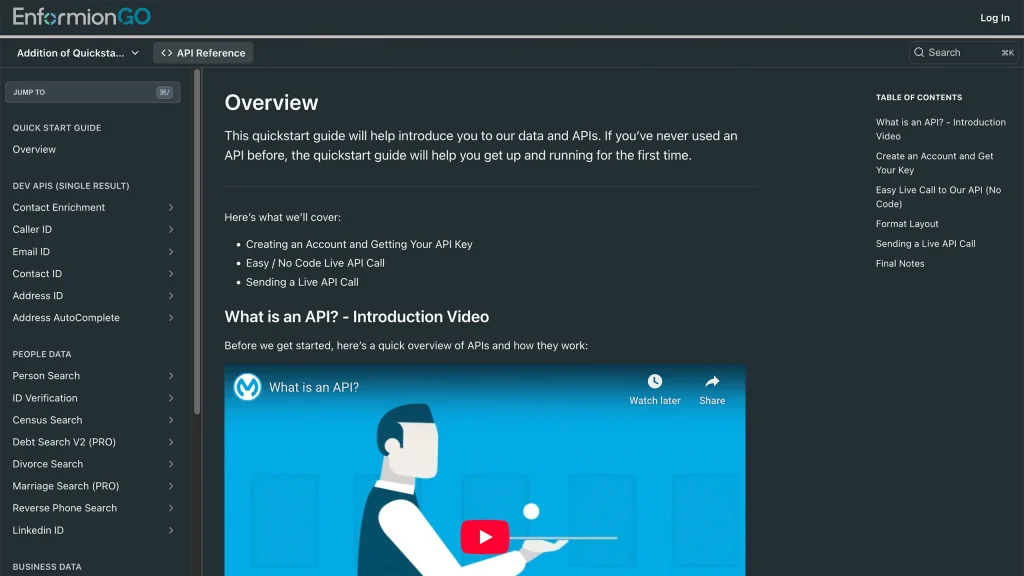
Enformiongo api documentation readme

Getting familiar with how to use EnformionGO’s search and API products is very helpful in deciding what products you’ll want to use. We’ve created this quick start guide to walk new users through how to use EnformionGO. Happy searching!

Pro License Data

Filter Pro License Data using the fields below.

  • License Status
    • Multi select
      Description: Select the license status(es) you want to target. You can select more than one


  • License Issuing State
    • Multi select
      Description: Select the license issuing state(s) you want to target. You can select more than one.


  • License Issuing Date Range
    • Select the date range for when the target matches had their license issued.
  • License Expiration Date Range
    • Select the date range for when the target matches had their license expire.

Workplace & Corporation Data

Filter Workplace Data using the fields below.

  • Years at Company
    • Field type: input
    • Description: Enter the number of years at a company for your target matches.
  • Job Title Level
    • Multi select
      Description: Select the job title level(s) you want to target. You can select more than one.
  • Department
    • Multi select
      Description: Select the department(s) you want to target. You can select more than one.
  • Company Revenue Range
    • Field type: range – min/max ($0 – $100,000,000)
    • Description: Set the company revenue range for your matches
  • Company Size
    • Field type: range – min/max (0 – 10,000)
    • Description: Set the company size range for your matches
  • Office Location City
    • Field type: input
    • Description: Enter the office location city name you want to target
 
  • Office Location County
    • Field type: input
    • Description: Enter the office location county name you want to target
  • Office Location State
    • Field type: Multi-select
    • Description: Select the office location state(s) you want to target. You can select more than one.
  • Office Location Zip
    • Field type: input
    • Description: Enter the office location zip code you want to target

Property Data

Filter Property Data using the fields below.

  • Number of Property Owners
    • Field type: range – min/max (0 – 50)
    • Description: Set the range of the number of owners for one of the properties linked to each match you want to target
  • Land Use Code
    • Field type: input
    • Description: Enter the land use code (number only) for one of the properties linked to each match you want to target. For example, for “1100: Single-Family Home” you would enter “1100”
  • Total Square Footage
    • Field type: input
    • Description: Enter the total square footage (number only) for one of the properties linked to each match you want to target

  • Property Value
    • Field type: range – min/max (0 – 10 million)
    • Description: Set the range of the property value for one of the properties linked to each match you want to target
  • Mortgage Amount
    • Field type: input
    • Description: Enter the mortgage amount (number only) for one of the properties linked to each match you want to target
  • Purchase Date
    • Field type: input
    • Description: Enter the purchase date (number only) for one of the properties linked to each match you want to target
  • Property Type
    • Multi select
      Description: Select the property type(s) you want to target. You can select more than one.
  • Owner Type
    • Multi select
      Description: Select the owner type(s) you want to target. You can select more than one.
  • Owner Status
    • Multi select
      Description: Select the owner status(es) you want to target. You can select more than one.
  • Owner Occupied
    • Field type: Boolean
    • Description: Select if you require for one of the properties to be owner-occupied

Consumer Insights Data

Filter Consumer Insights Data using the fields below.

  • Presence of Children
    • Field type: Boolean
    • Description: Select if you require matches with children present in the household
    •  
  • Credit Card Holder
    • Field type: Boolean
    • Description: Select if you require matches to be a credit card holder
  • Interest in Travel
    • Field type: Boolean
    • Description: Select if you require matches to be interested in travel
  • Interest in Cooking
    • Field type: Boolean
    • Description: Select if you require matches to be interested in cooking
  • Interest in Reading
    • Field type: Boolean
    • Description: Select if you require matches to be interested in reading


  • Smoker
    • Field type: Boolean
    • Description: Select if you require matches to be a smoker
  • Exercise Enthusiast
    • Field type: Boolean
    • Description: Select if you require matches to be an exercise enthusiast
  • Exercise with Running
    • Field type: Boolean
    • Description: Select if you require matches who run for exercise
  • Exercise with Walking
    • Field type: Boolean
    • Description: Select if you require matches who walk for exercise
  • Does Aerobic Exercise
    • Field type: Boolean
    • Description: Select if you require matches who do aerobic exercise
  • Into Camping / Hiking
    • Field type: Boolean
    • Description: Select if you require matches who are interested in camping / hiking 
  • Into Natural Foods
    • Field type: Boolean
    • Description: Select if you require matches who are interested in natural foods
  • Into Beauty Health
    • Field type: Boolean
    • Description: Select if you require matches who are interested in health / beauty
  • Into Medical Health
    • Field type: Boolean
    • Description: Select if you require matches who are interested in health / medicine
  • Into the Outdoors
    • Field type: Boolean
    • Description: Select if you require matches who are interested in the outdoors
  • Into Sporty Living
    • Field type: Boolean
    • Description: Select if you require matches who are interested in the outdoors

Location Data

Filter Location Data using the fields below.

  • City
    • Field type: input
    • Description: Enter the city name you want to target
  • County
    • Field type: input
    • Description: Enter the county name you want to target
  • State
    • Field type: Multi-select
    • Description: Select the state(s) you want to target. You can select more than one.
  • Zip
    • Field type: input
    • Description: Enter the zip code you want to target
  • Population Designation
    • Field type: Multi-select
    • Description: Select the population type(s) you want to target. You can select more than one.

Person Data

Filter Person Data using the fields below.

  • Age
    • Field type: range – min/max (18 – 120)
    • Description: Set the age range for your matches
  • Education Level
    • Multi select
      Description: Select the education level(s) you want to target. You can select more than one.
  • Credit Score
    • Field type: range – min/max (0 – 850)
    • Description: Set the credit score range for your matches
  • Estimated Income
    • Field type: range – min/max ($0 – $250,000)
    • Description: Set the income range for your matches. Max setting is $250,000+.
  • Number of Properties Owned
    • Field type: range – min/max (0 – 50)
    • Description: Set the owned properties range for your matches
  • Occupation Level
    • Multi select
      Description: Select the occupation level(s) you want to target. You can select more than one.
  • Marital Status
    • Multi select
      Description: Select the marital status(es) you want to target. You can select more than one.
  • Gender
    • Multi select
      Description: Select the gender(s) you want to target. You can select more than one. Default is all.