TN License Verification for Tennessee Professionals

TN license verification is the official way to confirm whether a professional in Tennessee holds an active and valid state-issued license. It allows organizations and researchers to check important details such as license status, expiration dates, and any publicly available disciplinary history through official government sources.

Tennessee’s professional licensing boards provide direct access to regulatory records so users can verify credentials with confidence. According to the Tennessee Department of Commerce and Insurance, the state regulates dozens of licensed professions through multiple boards and commissions, each responsible for maintaining its own verification process.

Are you unsure how to confirm whether someone is properly licensed in Tennessee? The state’s official license lookup tools make it possible to verify credentials quickly and reliably.

Understanding Tennessee License Verification

Tennessee does not operate one single universal database for all professions. Instead, professional oversight is divided across several state agencies and licensing boards, depending on the occupation.

Each board manages its own licensing standards, renewal requirements, and disciplinary enforcement.

Key elements of Tennessee’s licensing oversight include:

  • Board-specific regulatory control

  • Public access to license status

  • Renewal and compliance monitoring

Understanding Tennessee License Verification​
TN Board Specific Regulatory Control

Board-Specific Regulatory Control

Every regulated profession in Tennessee falls under a designated licensing authority. For example:

  • Healthcare professionals are verified through Tennessee health licensing boards

  • Contractors and certain commercial trades fall under commerce-related divisions

  • Real estate professionals are overseen by separate regulatory commissions

Identifying the correct licensing board is the first step in a successful Tennessee professional license search.

Which Professions Are Covered?

Tennessee regulates a wide range of occupations beyond healthcare. Licensed professions may include:

  • Architects and engineers

  • Barbers and cosmetologists

  • Funeral service providers

  • Private investigators

  • Real estate appraisers

  • Land surveyors and specialty trades

Because oversight varies by profession, the best approach is always to use the official board portal connected to the license type being verified.


Which Professions Are Covered​
Public License Status Access

Public License Status Access

Most Tennessee licensing boards offer free online search tools that allow the public to view whether a license is:

  • Active

  • Expired

  • Suspended

  • Revoked

These portals often include issue dates and renewal timelines, supporting transparency and accountability across regulated industries.

Renewal and Compliance Tracking

Licensed professionals must renew credentials on scheduled cycles and may be required to complete continuing education depending on their field.

Failure to renew on time or disciplinary enforcement can affect a license’s standing, making routine verification an important part of business research and credential review.


Step-by-Step Guide to Verifying a Tennessee Professional License

Verifying a professional license in Tennessee typically takes only a few minutes when you know which board regulates the profession.

A standard verification process includes:

1. Identify the Correct Licensing Board

Tennessee divides oversight across multiple agencies, so selecting the right board ensures accurate results.

2. Use the Official State Search Portal

For individual checks, government-hosted databases provide the official source of record. For organizations that need broader coverage, automation, or scalable monitoring, trusted data platforms can help streamline verification while maintaining accuracy.

3. Enter Accurate Search Details

Most portals allow searches by:

  • Individual name

  • Business name

  • License number

Correct spelling and filtering options improve accuracy.

4. Review and Save the Results

License records often display:

  • Current status

  • Issue and expiration dates

  • Board oversight information

  • Disciplinary notes (when available)

Businesses may save verification records for compliance or audit purposes.

Information Available Through Tennessee License Records

Information Available Through Tennessee License Records​

A Tennessee license lookup provides more than a simple name match. Users can often access key regulatory details such as:

License Status

Indicates whether the credential is active, inactive, suspended, or revoked.

Issuance and Expiration Dates

Helps confirm whether the license is current and properly renewed.

Disciplinary History

Some boards include enforcement actions or administrative penalties, though availability varies by agency.

Board Oversight Details

Records identify the specific authority responsible for regulation and compliance.

Frequently Asked Questions

Is TN License Verification Free?

Most Tennessee boards provide free public license searches. Fees may apply for certified documentation or formal verification letters.

How Often Should Businesses Verify Licenses?

Verification should occur before engagement or onboarding, and periodically afterward based on renewal schedules or internal compliance policies.

Can Historical Records Be Accessed?

Some boards provide archived enforcement or past license data, but availability depends on the profession and agency.

Can License Verification Be Automated?

Organizations managing large volumes of credential checks may use research tools or data services to streamline monitoring beyond manual state lookups.

While Tennessee’s official portals are excellent for individual searches, they are not designed for ongoing, high-volume license monitoring. Manually verifying dozens or hundreds of professionals across multiple boards can become time-consuming, especially when renewal deadlines and compliance requirements must be tracked consistently.

That’s where EnformionGo fits in.

EnformionGo helps businesses, agencies, and platforms streamline public record research workflows by providing scalable access to public record intelligence, flexible search tools, and API-ready solutions built for real-world compliance needs. Instead of relying on repeated manual searches, organizations can monitor credentials more efficiently and reduce the risk of missed renewals or outdated records.

Navigating TN License Verification with Confidence

TN license verification is a reliable way to confirm professional credentials across Tennessee’s regulated industries. By using the correct state board portal and reviewing license standing carefully, businesses and consumers can reduce risk and make informed decisions.

For organizations that need to verify credentials at scale or integrate verification into onboarding and compliance workflows, EnformionGo provides the tools, data coverage, and automation support to go beyond manual lookups.

Start your free EnformionGo trial today and streamline public record research and credential monitoring.
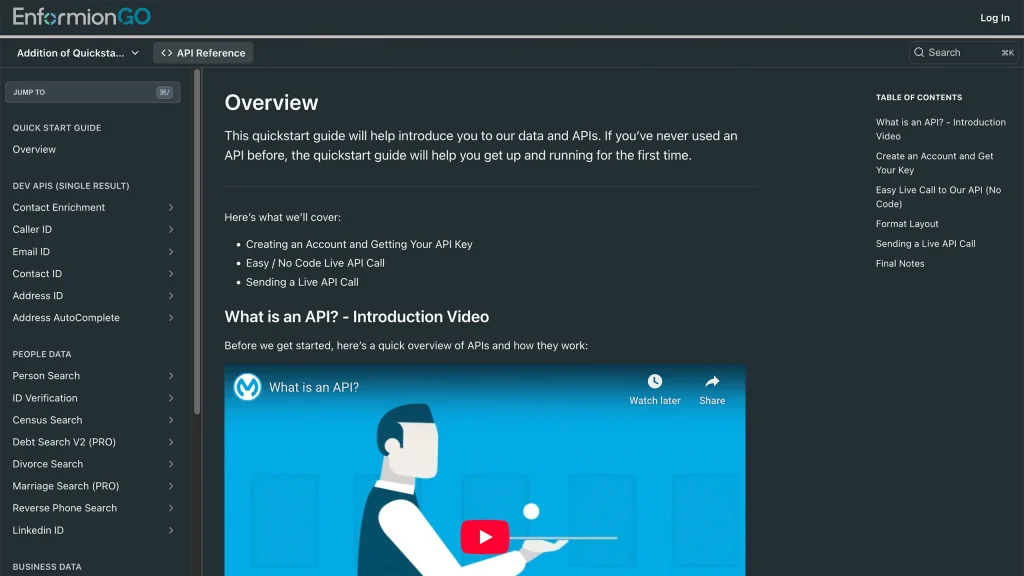
Enformiongo api documentation readme

Getting familiar with how to use EnformionGO’s search and API products is very helpful in deciding what products you’ll want to use. We’ve created this quick start guide to walk new users through how to use EnformionGO. Happy searching!

Pro License Data

Filter Pro License Data using the fields below.

  • License Status
    • Multi select
      Description: Select the license status(es) you want to target. You can select more than one


  • License Issuing State
    • Multi select
      Description: Select the license issuing state(s) you want to target. You can select more than one.


  • License Issuing Date Range
    • Select the date range for when the target matches had their license issued.
  • License Expiration Date Range
    • Select the date range for when the target matches had their license expire.

Workplace & Corporation Data

Filter Workplace Data using the fields below.

  • Years at Company
    • Field type: input
    • Description: Enter the number of years at a company for your target matches.
  • Job Title Level
    • Multi select
      Description: Select the job title level(s) you want to target. You can select more than one.
  • Department
    • Multi select
      Description: Select the department(s) you want to target. You can select more than one.
  • Company Revenue Range
    • Field type: range – min/max ($0 – $100,000,000)
    • Description: Set the company revenue range for your matches
  • Company Size
    • Field type: range – min/max (0 – 10,000)
    • Description: Set the company size range for your matches
  • Office Location City
    • Field type: input
    • Description: Enter the office location city name you want to target
 
  • Office Location County
    • Field type: input
    • Description: Enter the office location county name you want to target
  • Office Location State
    • Field type: Multi-select
    • Description: Select the office location state(s) you want to target. You can select more than one.
  • Office Location Zip
    • Field type: input
    • Description: Enter the office location zip code you want to target

Property Data

Filter Property Data using the fields below.

  • Number of Property Owners
    • Field type: range – min/max (0 – 50)
    • Description: Set the range of the number of owners for one of the properties linked to each match you want to target
  • Land Use Code
    • Field type: input
    • Description: Enter the land use code (number only) for one of the properties linked to each match you want to target. For example, for “1100: Single-Family Home” you would enter “1100”
  • Total Square Footage
    • Field type: input
    • Description: Enter the total square footage (number only) for one of the properties linked to each match you want to target

  • Property Value
    • Field type: range – min/max (0 – 10 million)
    • Description: Set the range of the property value for one of the properties linked to each match you want to target
  • Mortgage Amount
    • Field type: input
    • Description: Enter the mortgage amount (number only) for one of the properties linked to each match you want to target
  • Purchase Date
    • Field type: input
    • Description: Enter the purchase date (number only) for one of the properties linked to each match you want to target
  • Property Type
    • Multi select
      Description: Select the property type(s) you want to target. You can select more than one.
  • Owner Type
    • Multi select
      Description: Select the owner type(s) you want to target. You can select more than one.
  • Owner Status
    • Multi select
      Description: Select the owner status(es) you want to target. You can select more than one.
  • Owner Occupied
    • Field type: Boolean
    • Description: Select if you require for one of the properties to be owner-occupied

Consumer Insights Data

Filter Consumer Insights Data using the fields below.

  • Presence of Children
    • Field type: Boolean
    • Description: Select if you require matches with children present in the household
    •  
  • Credit Card Holder
    • Field type: Boolean
    • Description: Select if you require matches to be a credit card holder
  • Interest in Travel
    • Field type: Boolean
    • Description: Select if you require matches to be interested in travel
  • Interest in Cooking
    • Field type: Boolean
    • Description: Select if you require matches to be interested in cooking
  • Interest in Reading
    • Field type: Boolean
    • Description: Select if you require matches to be interested in reading


  • Smoker
    • Field type: Boolean
    • Description: Select if you require matches to be a smoker
  • Exercise Enthusiast
    • Field type: Boolean
    • Description: Select if you require matches to be an exercise enthusiast
  • Exercise with Running
    • Field type: Boolean
    • Description: Select if you require matches who run for exercise
  • Exercise with Walking
    • Field type: Boolean
    • Description: Select if you require matches who walk for exercise
  • Does Aerobic Exercise
    • Field type: Boolean
    • Description: Select if you require matches who do aerobic exercise
  • Into Camping / Hiking
    • Field type: Boolean
    • Description: Select if you require matches who are interested in camping / hiking 
  • Into Natural Foods
    • Field type: Boolean
    • Description: Select if you require matches who are interested in natural foods
  • Into Beauty Health
    • Field type: Boolean
    • Description: Select if you require matches who are interested in health / beauty
  • Into Medical Health
    • Field type: Boolean
    • Description: Select if you require matches who are interested in health / medicine
  • Into the Outdoors
    • Field type: Boolean
    • Description: Select if you require matches who are interested in the outdoors
  • Into Sporty Living
    • Field type: Boolean
    • Description: Select if you require matches who are interested in the outdoors

Location Data

Filter Location Data using the fields below.

  • City
    • Field type: input
    • Description: Enter the city name you want to target
  • County
    • Field type: input
    • Description: Enter the county name you want to target
  • State
    • Field type: Multi-select
    • Description: Select the state(s) you want to target. You can select more than one.
  • Zip
    • Field type: input
    • Description: Enter the zip code you want to target
  • Population Designation
    • Field type: Multi-select
    • Description: Select the population type(s) you want to target. You can select more than one.

Person Data

Filter Person Data using the fields below.

  • Age
    • Field type: range – min/max (18 – 120)
    • Description: Set the age range for your matches
  • Education Level
    • Multi select
      Description: Select the education level(s) you want to target. You can select more than one.
  • Credit Score
    • Field type: range – min/max (0 – 850)
    • Description: Set the credit score range for your matches
  • Estimated Income
    • Field type: range – min/max ($0 – $250,000)
    • Description: Set the income range for your matches. Max setting is $250,000+.
  • Number of Properties Owned
    • Field type: range – min/max (0 – 50)
    • Description: Set the owned properties range for your matches
  • Occupation Level
    • Multi select
      Description: Select the occupation level(s) you want to target. You can select more than one.
  • Marital Status
    • Multi select
      Description: Select the marital status(es) you want to target. You can select more than one.
  • Gender
    • Multi select
      Description: Select the gender(s) you want to target. You can select more than one. Default is all.