VA SOS Business Search for Virginia Entity Lookups

The VA SOS Business Search is the official tool for conducting a Virginia business entity search and finding verified public records on corporations, limited liability companies, and other registered entities in the Commonwealth. It lets users quickly see whether a business is active, who the registered agent is, and essential registration details without guesswork or third-party guesswork.

According to the Greater Washington Board of Trade, Virginia is home to over 818,000 small businesses, making up about 99.5 percent of all businesses in the state.

Are you unsure how to confirm that a business is legally registered or in good standing? The VA SOS Business Search answers those needs with a searchable database of official filings.

Understanding the VA SOS Business Search System

The VA SOS Business Search system gives the public direct access to official records kept by Virginia’s State Corporation Commission. It exists to show who owns and operates registered businesses and whether those entities meet filing requirements. Users rely on the system to confirm legitimacy before signing contracts or forming partnerships.

Several core features define how the Virginia corporate search tool works:

  • Public record access
  • Searchable entity database
  • Official filing transparency


Understanding the VA SOS Business Search System
Public Record Access

Public Record Access

The database serves as an open record platform for businesses registered in the Commonwealth. Anyone can review entity status, formation details, and registration history without special credentials. That level of openness supports fair business activity and reduces uncertainty during transactions.

Searchable Entity Database

The Virginia business entity search function allows users to look up companies by name or identification number. Results appear quickly and show structured summaries. Clear formatting helps users confirm they’ve located the correct organization.

Official Filing Transparency

Records displayed through the SOS Virginia corporation lookup come directly from state filings. Information reflects documents submitted during theEntity registration VA processes. That connection to official submissions builds trust in the Virginia business registry and supports informed decision-making.

Step-By-Step Guide to Performing a Virginia Business Entity Search

Running a search through the state database takes only a few minutes once you know where to look. The system supports several search styles, and each one serves a different research goal. Clear steps help users avoid errors and pull the correct records the first time.

Several actions shape a successful lookup:

  • Accessing the online portal
  • Choosing a search method
  • Reviewing search results
  • Saving official records
Virginia Business Entity Search

Accessing the Online Portal

Start by opening the Virginia corporate search tool through the State Corporation Commission website. The homepage directs users to the Virginia business entity search page without extra software or login steps. A stable internet connection and correct spelling matter more than anything else at this stage.

Choosing a Search Method

The VA SOS Business Search supports name searches, identification number searches, and officer name searches. A business name search works best for general research. Identification numbers help when confirming an exact match. Officer searches assist with ownership tracking.

Reviewing Search Results

Results appear in a structured list that shows entity status, type, and identification numbers. Active and inactive labels carry legal meaning. Users should compare spelling and location details before opening a record.

Saving Official Records

Each listing connects to a detailed entity page inside the Virginia business registry. Users can print pages or download filings for documentation. Keeping copies helps with compliance reviews and contract verification.

Information Available Through the Virginia Business Registry

Information Available Through the Virginia Business Registry

A record search reveals far more than a simple business name. Each entry in the Virginia business registry provides legal and operational details that help users confirm identity and status. Accurate records reduce risk during contracts and partnerships.

There are several categories of information users can expect to find:

  • Entity status details
  • Registered agent information
  • Filing and compliance history
  • Formation and ownership data

Entity Status Details

Status labels show whether a company is active, inactive, or dissolved. Those labels carry legal meaning and affect whether a business can operate. An inactive listing may signal missed filings or unpaid fees.

Registered Agent Information

Each record lists a registered agent responsible for receiving legal documents. That contact connects the company to the state. Correct agent information matters during lawsuits or compliance notices.

Filing And Compliance History

The SOS Virginia corporation lookup displays a timeline of submitted reports and amendments. Missed filings appear in the record and may explain status changes. Reviewing that history helps users spot patterns in business behavior.

Formation And Ownership Data

Entity registration VA records include formation dates, entity type, and principal office location. Ownership structures vary by entity category. Those details clarify how a business operates and where authority sits.

Frequently Asked Questions

How Accurate Are Records In The Virginia Business Registry?

Accuracy depends on filings submitted by the business itself. The state records what companies report, so errors often trace back to outdated submissions.

Virginia requires periodic updates, yet some owners fall behind. Users should treat listings as official snapshots rather than real-time guarantees. Direct contact with the company adds another layer of confirmation.

Can Historical Records Be Accessed Through the SOS Virginia Corporation Lookup?

Older filings remain available in many cases. The system preserves formation documents, amendments, and status changes that show how an entity evolved.

Historical access helps with legal research and ownership disputes. Some archived material may require formal document requests rather than instant download.

Navigating the VA SOS Business Search

The VA SOS Business Search gives the public a reliable way to confirm business identity, status, and registration details in Virginia.

At EnformionGo!, we power our platform with decades of experience and a data network built from over 6,000 sources and more than 120 billion records. Our team delivers real-time public record intelligence for businesses, developers, and agencies that depend on accurate information. We focus on broad national coverage, strong mobile data accuracy, and flexible pricing, while offering search tools, APIs, and analytics designed to fit real workflows and scale with our customers.

Get started today to find out how we can help with your public record research and business intelligence needs.
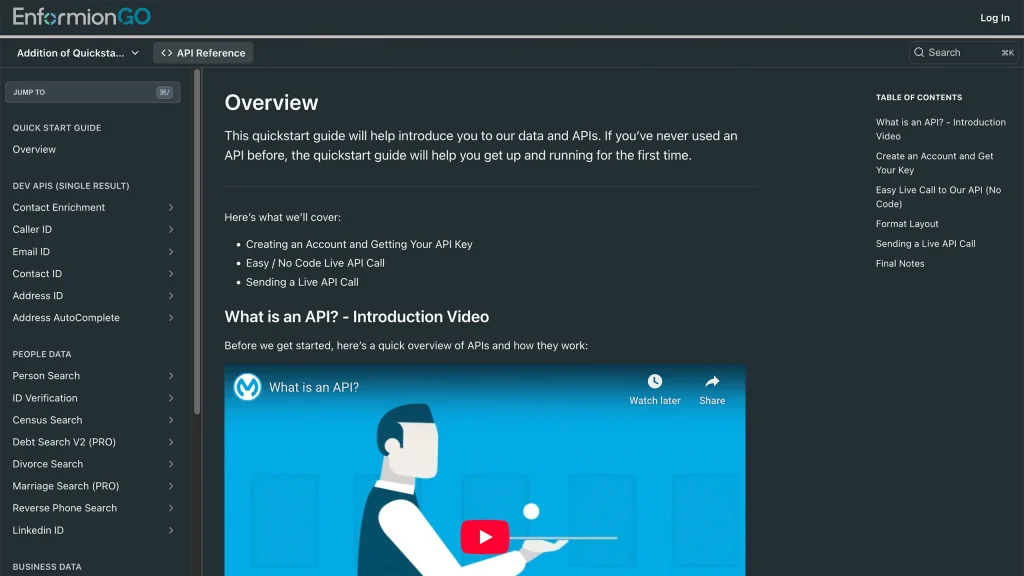
Enformiongo api documentation readme

Getting familiar with how to use EnformionGO’s search and API products is very helpful in deciding what products you’ll want to use. We’ve created this quick start guide to walk new users through how to use EnformionGO. Happy searching!

Pro License Data

Filter Pro License Data using the fields below.

  • License Status
    • Multi select
      Description: Select the license status(es) you want to target. You can select more than one


  • License Issuing State
    • Multi select
      Description: Select the license issuing state(s) you want to target. You can select more than one.


  • License Issuing Date Range
    • Select the date range for when the target matches had their license issued.
  • License Expiration Date Range
    • Select the date range for when the target matches had their license expire.

Workplace & Corporation Data

Filter Workplace Data using the fields below.

  • Years at Company
    • Field type: input
    • Description: Enter the number of years at a company for your target matches.
  • Job Title Level
    • Multi select
      Description: Select the job title level(s) you want to target. You can select more than one.
  • Department
    • Multi select
      Description: Select the department(s) you want to target. You can select more than one.
  • Company Revenue Range
    • Field type: range – min/max ($0 – $100,000,000)
    • Description: Set the company revenue range for your matches
  • Company Size
    • Field type: range – min/max (0 – 10,000)
    • Description: Set the company size range for your matches
  • Office Location City
    • Field type: input
    • Description: Enter the office location city name you want to target
 
  • Office Location County
    • Field type: input
    • Description: Enter the office location county name you want to target
  • Office Location State
    • Field type: Multi-select
    • Description: Select the office location state(s) you want to target. You can select more than one.
  • Office Location Zip
    • Field type: input
    • Description: Enter the office location zip code you want to target

Property Data

Filter Property Data using the fields below.

  • Number of Property Owners
    • Field type: range – min/max (0 – 50)
    • Description: Set the range of the number of owners for one of the properties linked to each match you want to target
  • Land Use Code
    • Field type: input
    • Description: Enter the land use code (number only) for one of the properties linked to each match you want to target. For example, for “1100: Single-Family Home” you would enter “1100”
  • Total Square Footage
    • Field type: input
    • Description: Enter the total square footage (number only) for one of the properties linked to each match you want to target

  • Property Value
    • Field type: range – min/max (0 – 10 million)
    • Description: Set the range of the property value for one of the properties linked to each match you want to target
  • Mortgage Amount
    • Field type: input
    • Description: Enter the mortgage amount (number only) for one of the properties linked to each match you want to target
  • Purchase Date
    • Field type: input
    • Description: Enter the purchase date (number only) for one of the properties linked to each match you want to target
  • Property Type
    • Multi select
      Description: Select the property type(s) you want to target. You can select more than one.
  • Owner Type
    • Multi select
      Description: Select the owner type(s) you want to target. You can select more than one.
  • Owner Status
    • Multi select
      Description: Select the owner status(es) you want to target. You can select more than one.
  • Owner Occupied
    • Field type: Boolean
    • Description: Select if you require for one of the properties to be owner-occupied

Consumer Insights Data

Filter Consumer Insights Data using the fields below.

  • Presence of Children
    • Field type: Boolean
    • Description: Select if you require matches with children present in the household
    •  
  • Credit Card Holder
    • Field type: Boolean
    • Description: Select if you require matches to be a credit card holder
  • Interest in Travel
    • Field type: Boolean
    • Description: Select if you require matches to be interested in travel
  • Interest in Cooking
    • Field type: Boolean
    • Description: Select if you require matches to be interested in cooking
  • Interest in Reading
    • Field type: Boolean
    • Description: Select if you require matches to be interested in reading


  • Smoker
    • Field type: Boolean
    • Description: Select if you require matches to be a smoker
  • Exercise Enthusiast
    • Field type: Boolean
    • Description: Select if you require matches to be an exercise enthusiast
  • Exercise with Running
    • Field type: Boolean
    • Description: Select if you require matches who run for exercise
  • Exercise with Walking
    • Field type: Boolean
    • Description: Select if you require matches who walk for exercise
  • Does Aerobic Exercise
    • Field type: Boolean
    • Description: Select if you require matches who do aerobic exercise
  • Into Camping / Hiking
    • Field type: Boolean
    • Description: Select if you require matches who are interested in camping / hiking 
  • Into Natural Foods
    • Field type: Boolean
    • Description: Select if you require matches who are interested in natural foods
  • Into Beauty Health
    • Field type: Boolean
    • Description: Select if you require matches who are interested in health / beauty
  • Into Medical Health
    • Field type: Boolean
    • Description: Select if you require matches who are interested in health / medicine
  • Into the Outdoors
    • Field type: Boolean
    • Description: Select if you require matches who are interested in the outdoors
  • Into Sporty Living
    • Field type: Boolean
    • Description: Select if you require matches who are interested in the outdoors

Location Data

Filter Location Data using the fields below.

  • City
    • Field type: input
    • Description: Enter the city name you want to target
  • County
    • Field type: input
    • Description: Enter the county name you want to target
  • State
    • Field type: Multi-select
    • Description: Select the state(s) you want to target. You can select more than one.
  • Zip
    • Field type: input
    • Description: Enter the zip code you want to target
  • Population Designation
    • Field type: Multi-select
    • Description: Select the population type(s) you want to target. You can select more than one.

Person Data

Filter Person Data using the fields below.

  • Age
    • Field type: range – min/max (18 – 120)
    • Description: Set the age range for your matches
  • Education Level
    • Multi select
      Description: Select the education level(s) you want to target. You can select more than one.
  • Credit Score
    • Field type: range – min/max (0 – 850)
    • Description: Set the credit score range for your matches
  • Estimated Income
    • Field type: range – min/max ($0 – $250,000)
    • Description: Set the income range for your matches. Max setting is $250,000+.
  • Number of Properties Owned
    • Field type: range – min/max (0 – 50)
    • Description: Set the owned properties range for your matches
  • Occupation Level
    • Multi select
      Description: Select the occupation level(s) you want to target. You can select more than one.
  • Marital Status
    • Multi select
      Description: Select the marital status(es) you want to target. You can select more than one.
  • Gender
    • Multi select
      Description: Select the gender(s) you want to target. You can select more than one. Default is all.